
Clean text from messy handwriting
How Penlo joins broken lines, fixes misreads using context and tidies punctuation, and how to correct anything by hand without losing your edits.

Michal Wlosik
· 3 min read
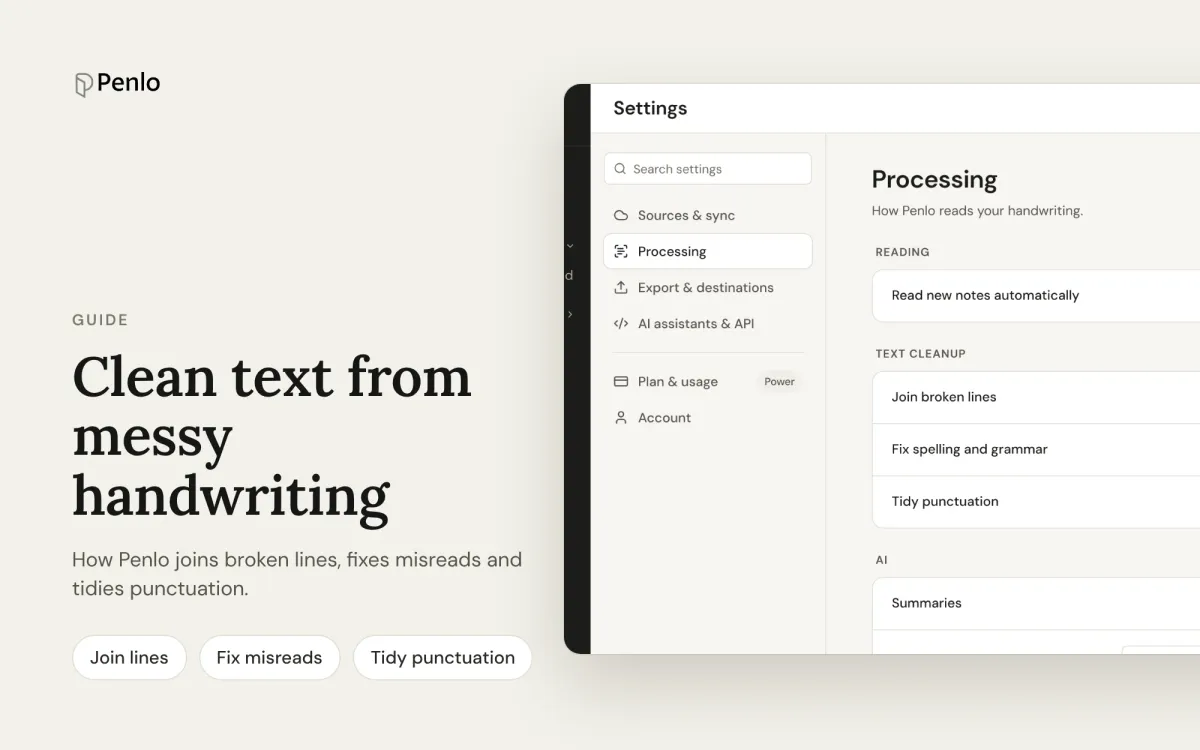
Handwriting recognition has come a long way, but raw transcriptions of handwritten notes still look messy: sentences broken in half at the edge of the page, a misread word here and there, stray symbols from doodles and bullet points. Penlo cleans this up for you while it reads the page, and lets you fix anything it gets wrong.
This is part of our getting started series.
Three cleanup switches
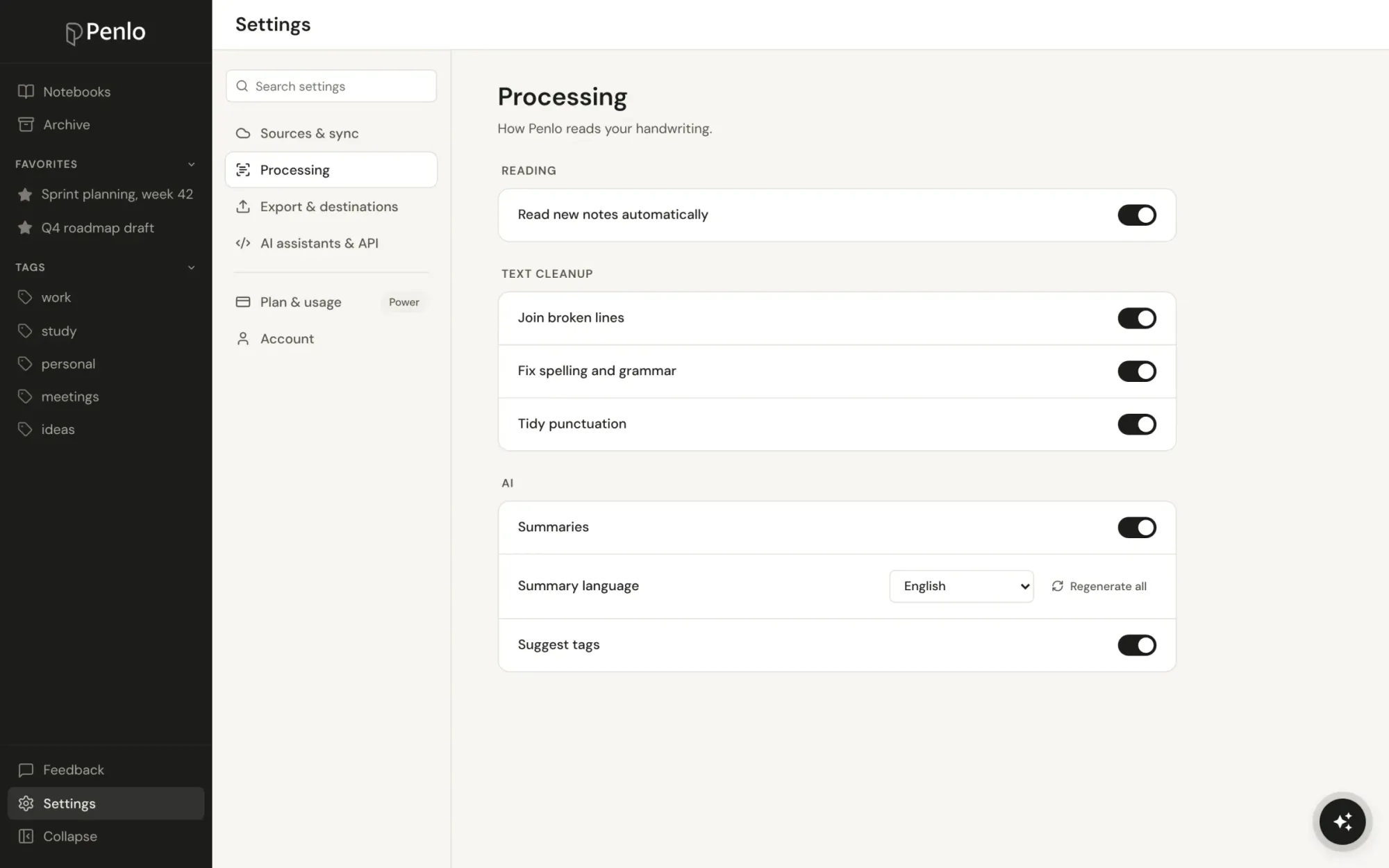
Penlo reads every page with Google Gemini. While it reads, it can tidy the text in three ways. You'll find them in Settings › Processing, all switched on by default:
- Join broken lines. Your handwriting wraps when it reaches the edge of the page. Penlo joins those lines back into normal sentences, while keeping real structure: paragraphs, headings and list items stay on their own lines.
- Fix spelling and grammar. Penlo uses the context of the whole page to settle unclear words and fix obvious misreads. It never rephrases or changes your meaning, and names, numbers and technical terms are kept as written.
- Tidy punctuation. Consistent quotes, dashes, spacing and bullets.
What the difference looks like
Here's part of a real handwritten page, read with the cleanup switches off and then on:
Pain: needs to find specific case
names in old notes. On-device
is "miserable".
search
Days for Notion. Wants notes IN
Notion automatically
Pain: needs to find specific case names in old notes. On-device search is "miserable".
Pays for Notion. Wants notes IN Notion automatically.
The lines are joined into sentences, the word "search" that was squeezed above the line lands where it belongs, and "Days" is corrected to "Pays" because that's what makes sense on the page.
Fix anything by hand
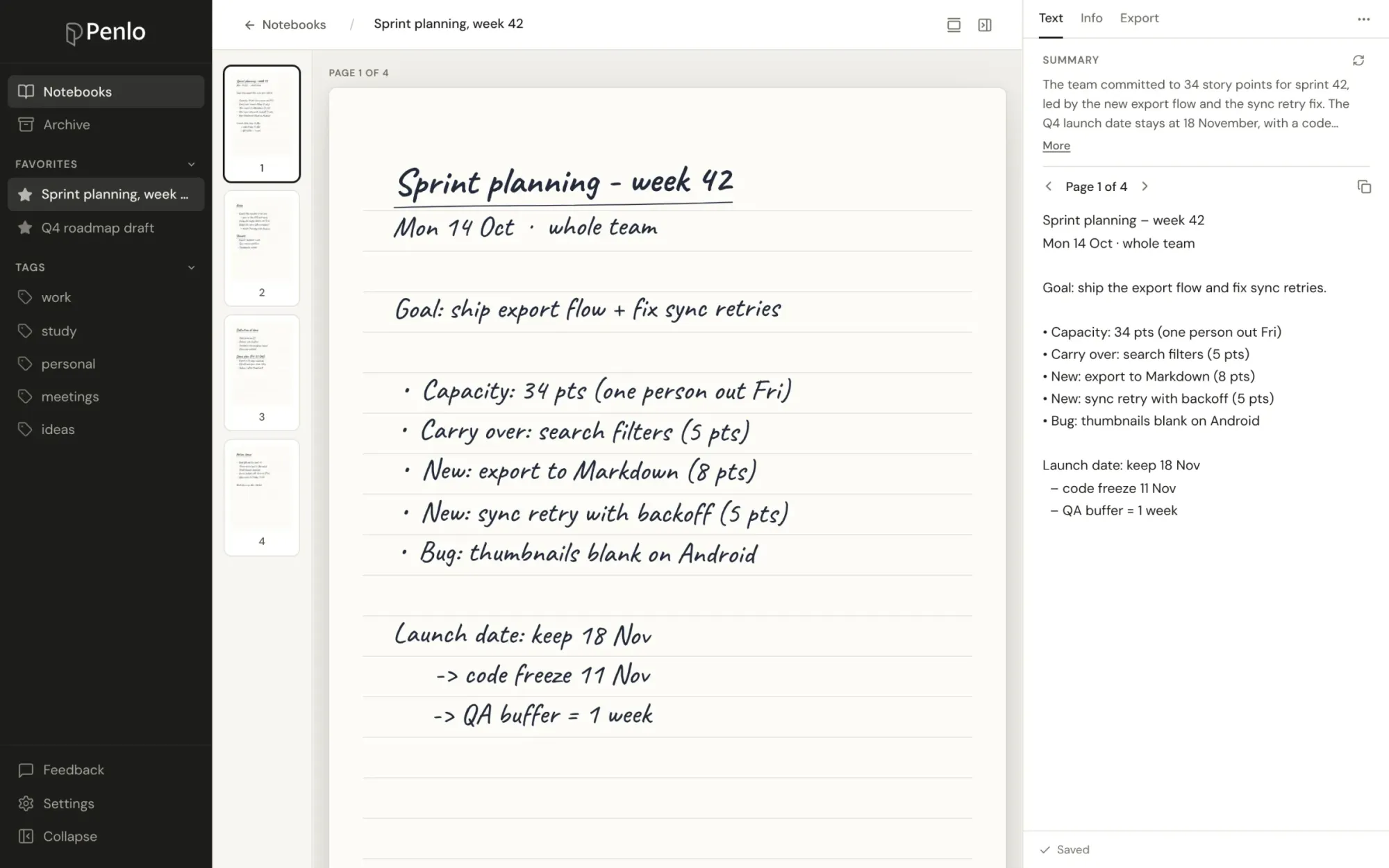
No transcription is perfect. If Penlo gets a word wrong, open the notebook and click into the text in the Text tab, next to the page. Type your fix and it's saved automatically.
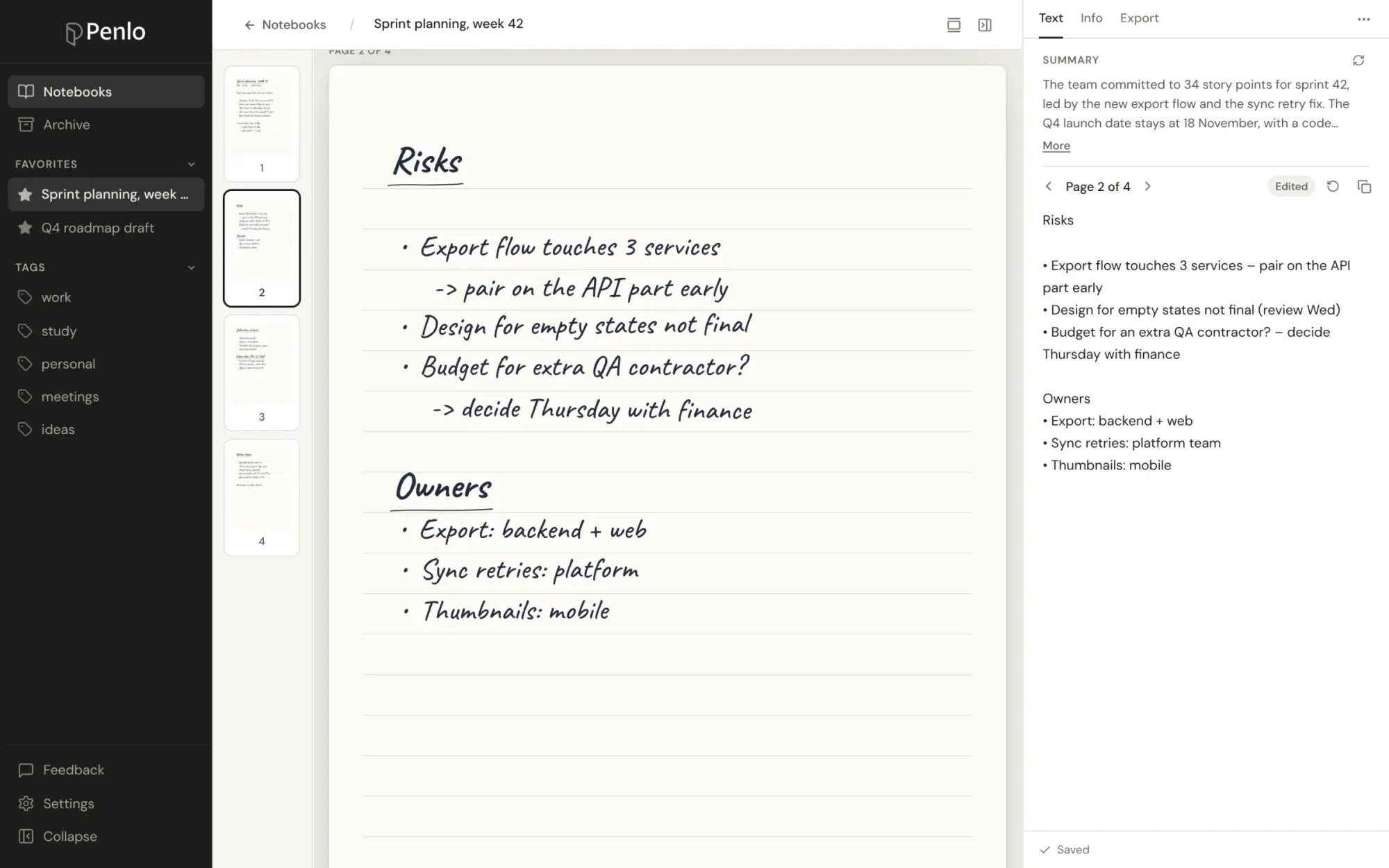
Pages you've changed are marked Edited. If you change your mind, the revert button next to it brings back Penlo's original transcription. Your corrections are used everywhere: in search, Penlo AI, the notebook summary and your exports.
Re-run OCR on older notes
Changing the cleanup switches affects notebooks Penlo reads from then on. To apply them to notes you already have, open a notebook, click ⋯ and choose Re-run OCR. To do many at once, select notebooks on the dashboard and re-run them together.
Re-running never throws away your work: by default, pages you corrected by hand keep your version, and only the other pages are read again. You can also choose to replace everything with a fresh transcription.
Summaries in your language
Every notebook gets a short AI summary at the top of its Text tab, written from the cleaned-up and corrected text. In Settings › Processing you can choose the language summaries are written in, whatever language your notes are in, and regenerate them all with one click.
Written by
Builder, product marketer. Creator of Penlo and Ectobuilder. Co-author of The AdTech Book. Writes about turning handwritten notes into searchable, useful text.
Keep reading
E-ink tablet vs iPad for note-taking: an honest comparison
Paper feel, focus and battery life, or apps, colour and search? How e-ink tablets and the iPad compare for handwritten notes, and how to close the e-ink tablet's one big gap.
The best handwriting OCR in 2026: what actually works for notes
Google Lens, Apple Live Text, AI assistants, your tablet's own recognition and Penlo, compared for real handwritten notes: messy writing, many pages, and finding the text again.
How to convert handwritten notes to text on an e-ink tablet
Three ways to turn handwritten notes into text if you write on an e-ink tablet: on the device, with a phone OCR app, or automatically for every notebook. What each is good for, and where it falls short.