
Getting started with Penlo: set up in five minutes
Connect your e-ink tablet to Penlo and turn your handwritten notes into searchable text. A five-step setup guide, and why Dropbox works best.

Michal Wlosik
· 5 min read
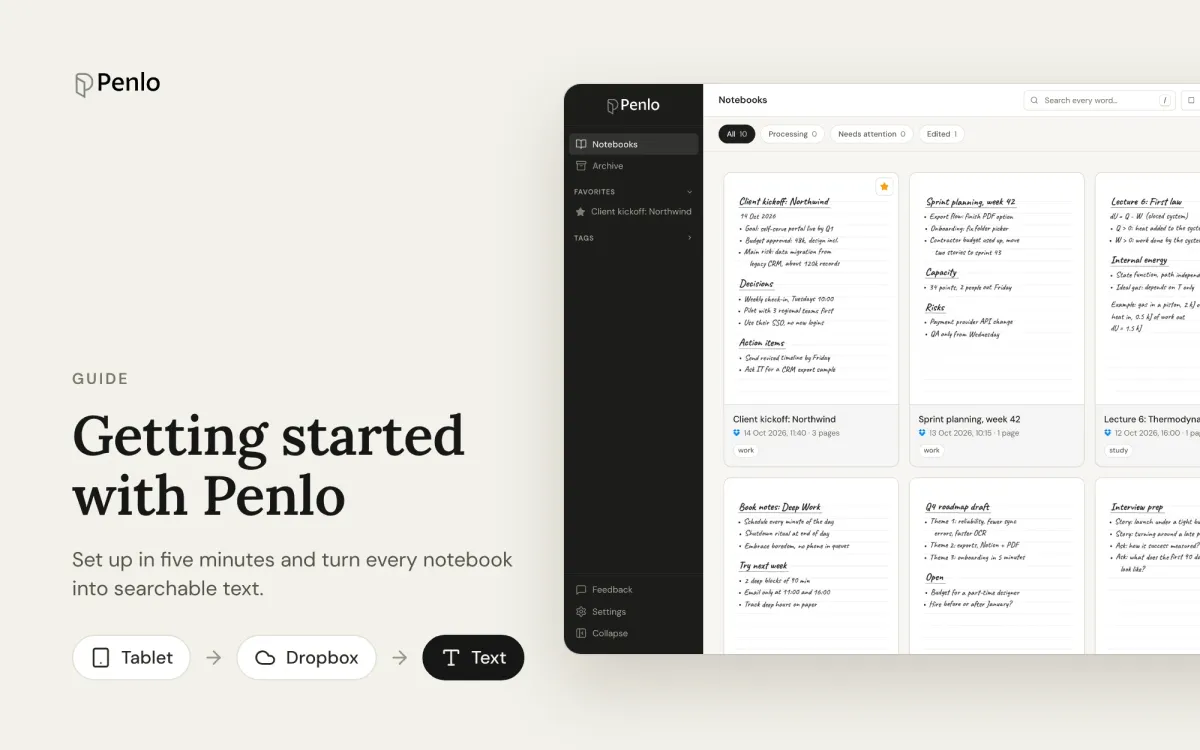
Penlo takes the notes you write on an e-ink tablet and makes them useful on every other screen. Your tablet saves each notebook as a PDF to your cloud storage. Penlo picks it up, reads your handwriting, and turns it into text you can search, copy and send to the tools you already use.
This guide gets you from zero to your first searchable notebook in about five minutes. We'll cover each feature in depth in later articles.
What Penlo does
- Syncs your notebooks automatically. New and updated notebooks show up in Penlo shortly after you close them on the tablet.
- Reads your handwriting. Every page is transcribed with Google Gemini, then tidied: broken lines are joined, obvious misreads are fixed using the context of the page, and punctuation is cleaned up. You can switch each of these off.
- Makes everything searchable. Search one notebook or all of them at once, and ask Penlo AI questions about what you wrote.
- Lets you take the text anywhere. Copy it, download it as Markdown or a searchable PDF, or send it to Notion.
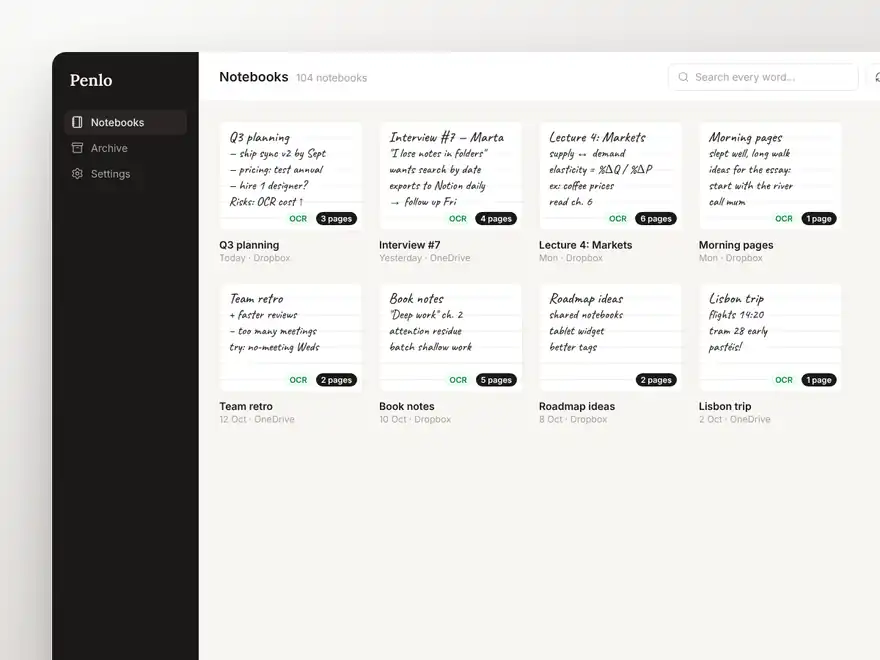
Before you start
You need two things:
- An e-ink tablet that saves notes as PDFs to cloud storage. Penlo works with Onyx BOOX, Supernote, reMarkable and Kindle Scribe, and with any other device that can save PDFs to the cloud.
- A Dropbox or OneDrive account that your tablet can save to.

Don't have Dropbox yet? Get 500 MB extra, free.
Sign up through our referral link and you get 500 MB on top of the free 2 GB plan. That's room for thousands of handwritten pages. (We get a little extra space too.)
Set up Penlo in five steps
1. Create your Penlo account
Go to notes.penlo.app and sign up with Google or your email address. Every new account starts with a 7-day trial of Penlo Power, the top plan, and you don't need a card.
Penlo then walks you through the rest of the setup. It takes about two minutes.
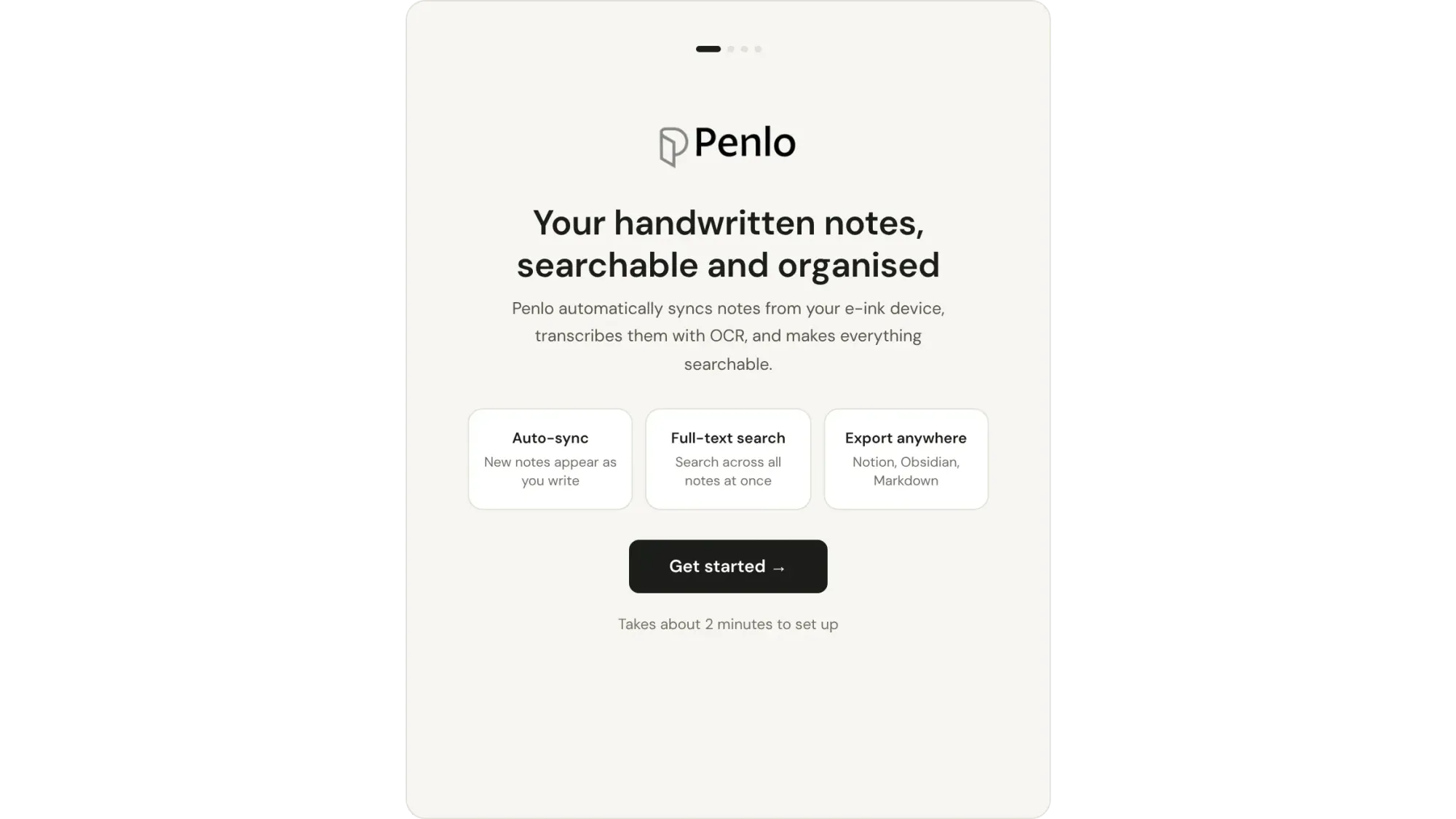
2. Learn the flow
The next screen sums up how Penlo works: you write on your tablet, the tablet saves a PDF to your cloud storage, and Penlo picks it up, reads it and makes it searchable. You never upload anything by hand.
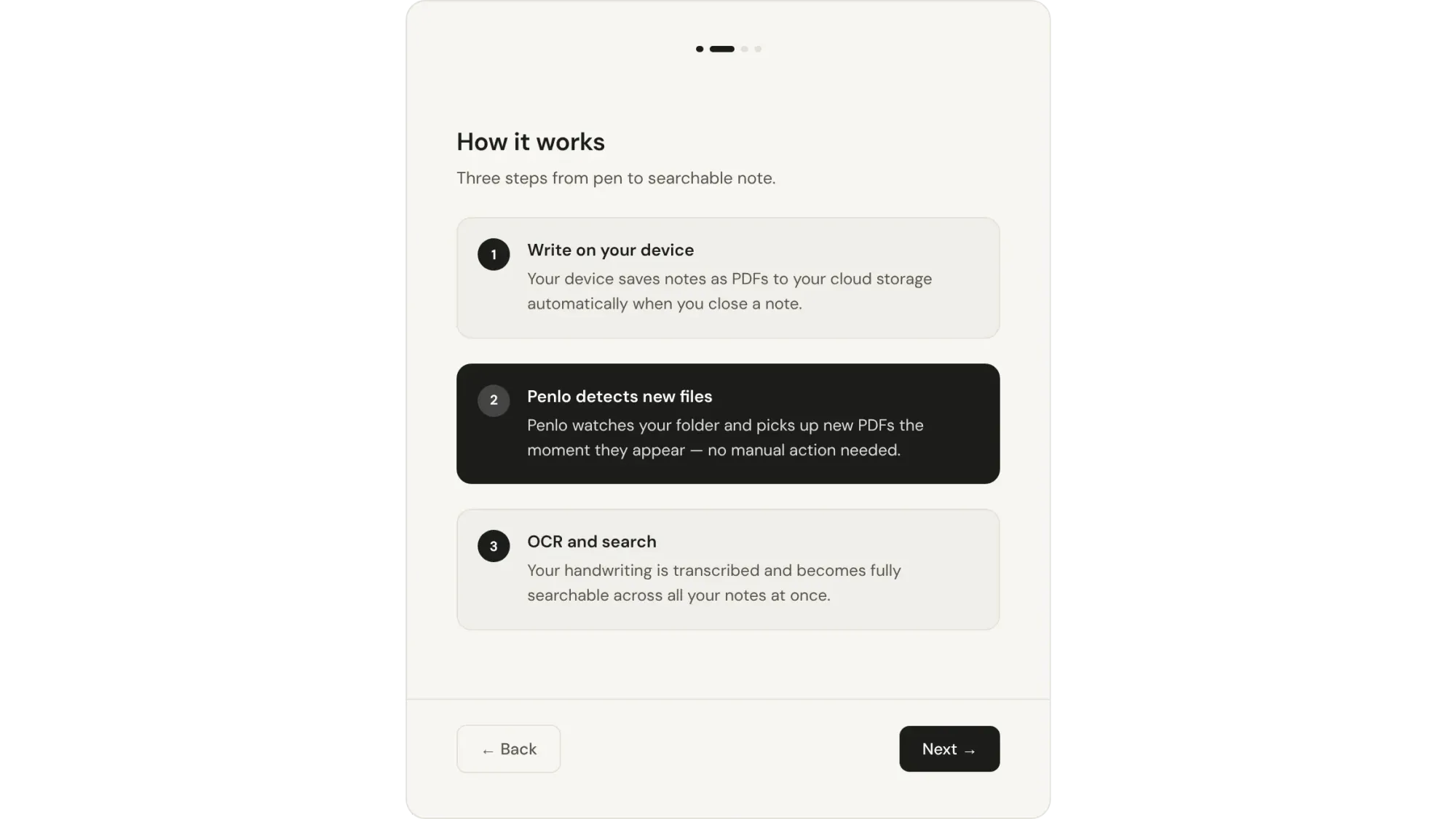
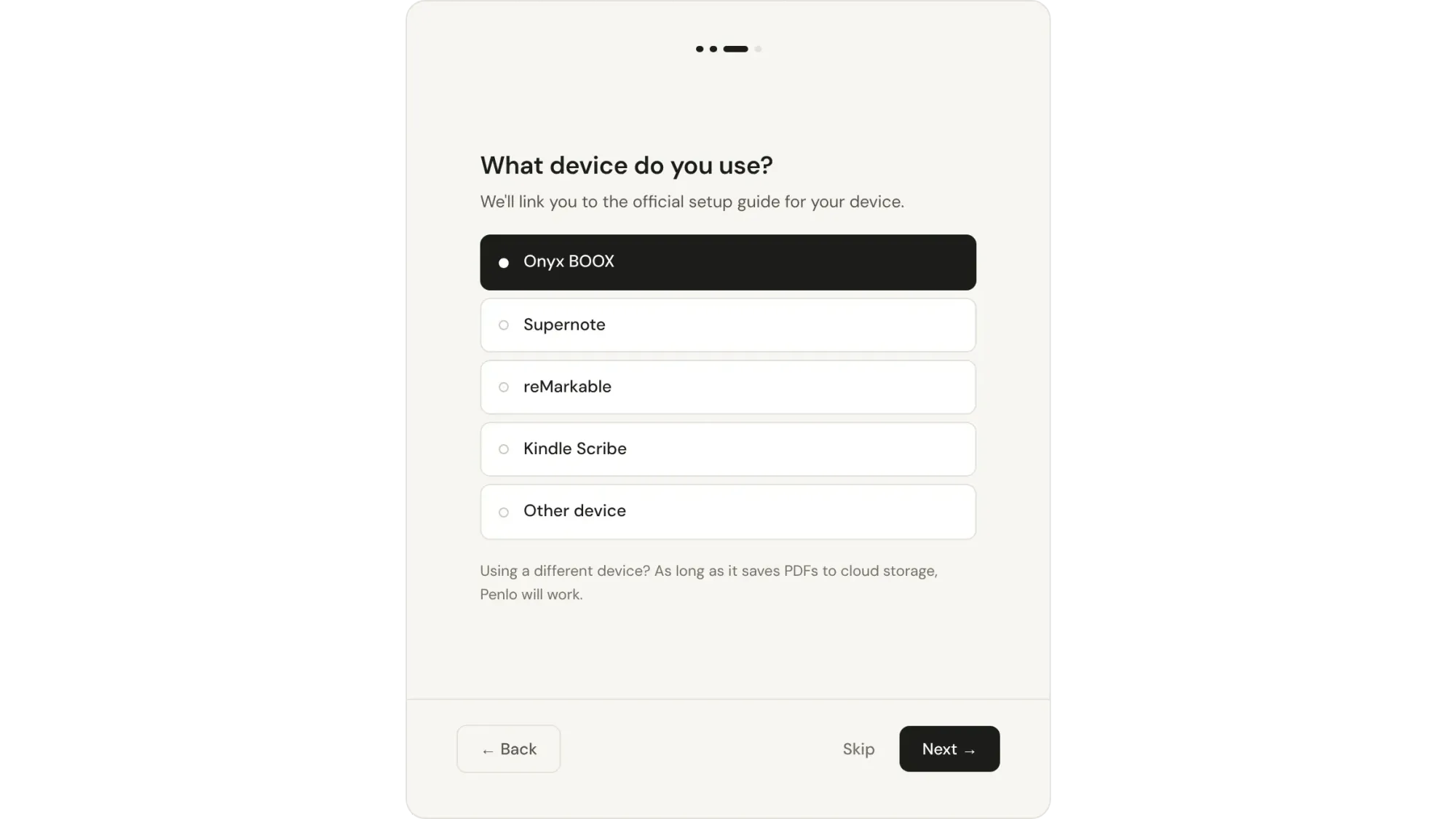
3. Pick your tablet
Choose the device you write on. Penlo uses this to show you the right setup instructions in the next step. If yours isn't listed, pick Other device: as long as it saves PDFs to the cloud, Penlo will work.
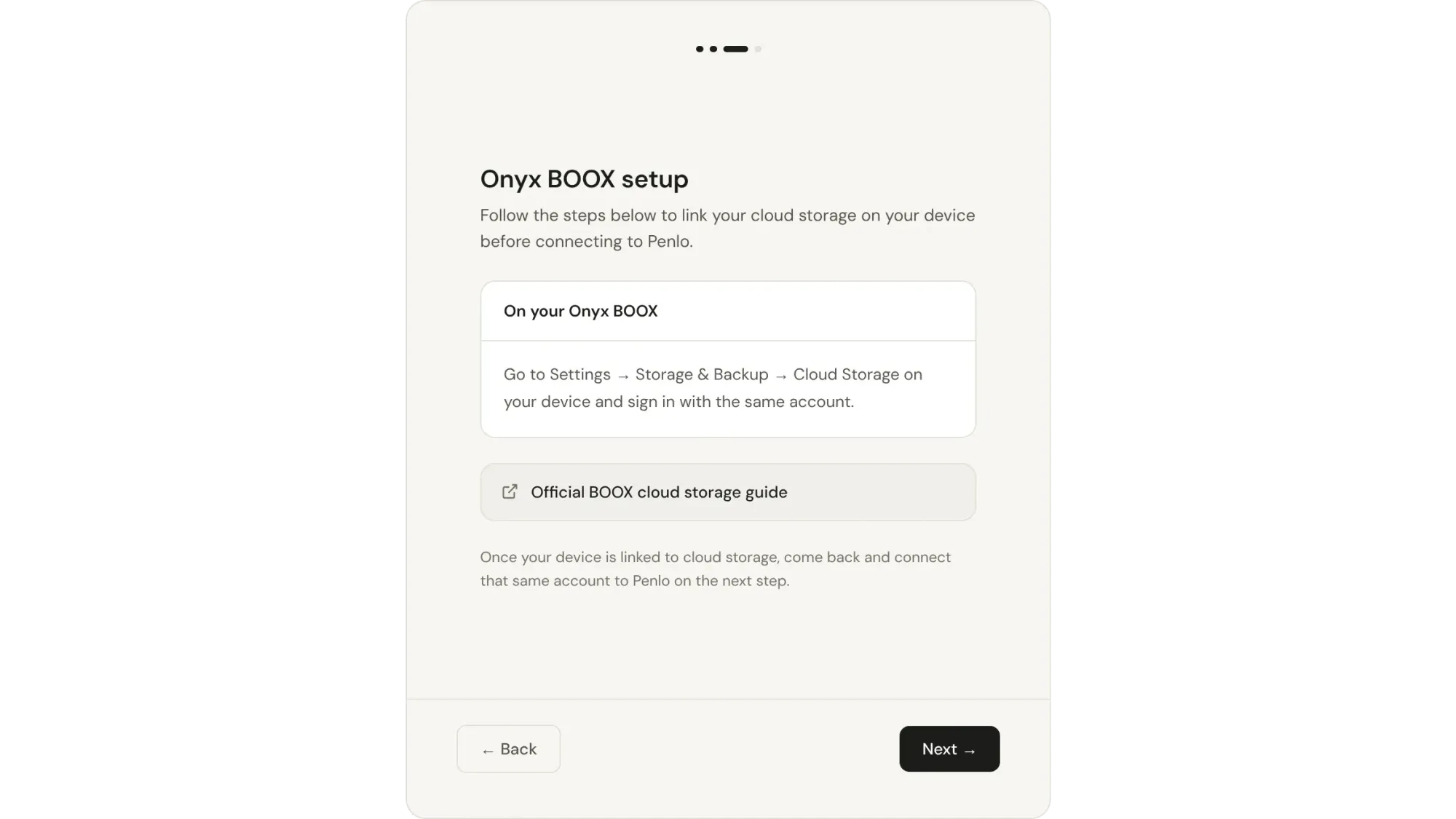
4. Link your tablet to cloud storage
This step happens on the tablet, not in Penlo. Sign in to the same Dropbox (or OneDrive) account on your device, so it saves your notebooks there. On an Onyx BOOX, go to Settings → Storage & Backup → Cloud Storage. Penlo links to your manufacturer's official guide if you need more detail, and we have step-by-step guides for BOOX and for Supernote, reMarkable and Kindle Scribe.
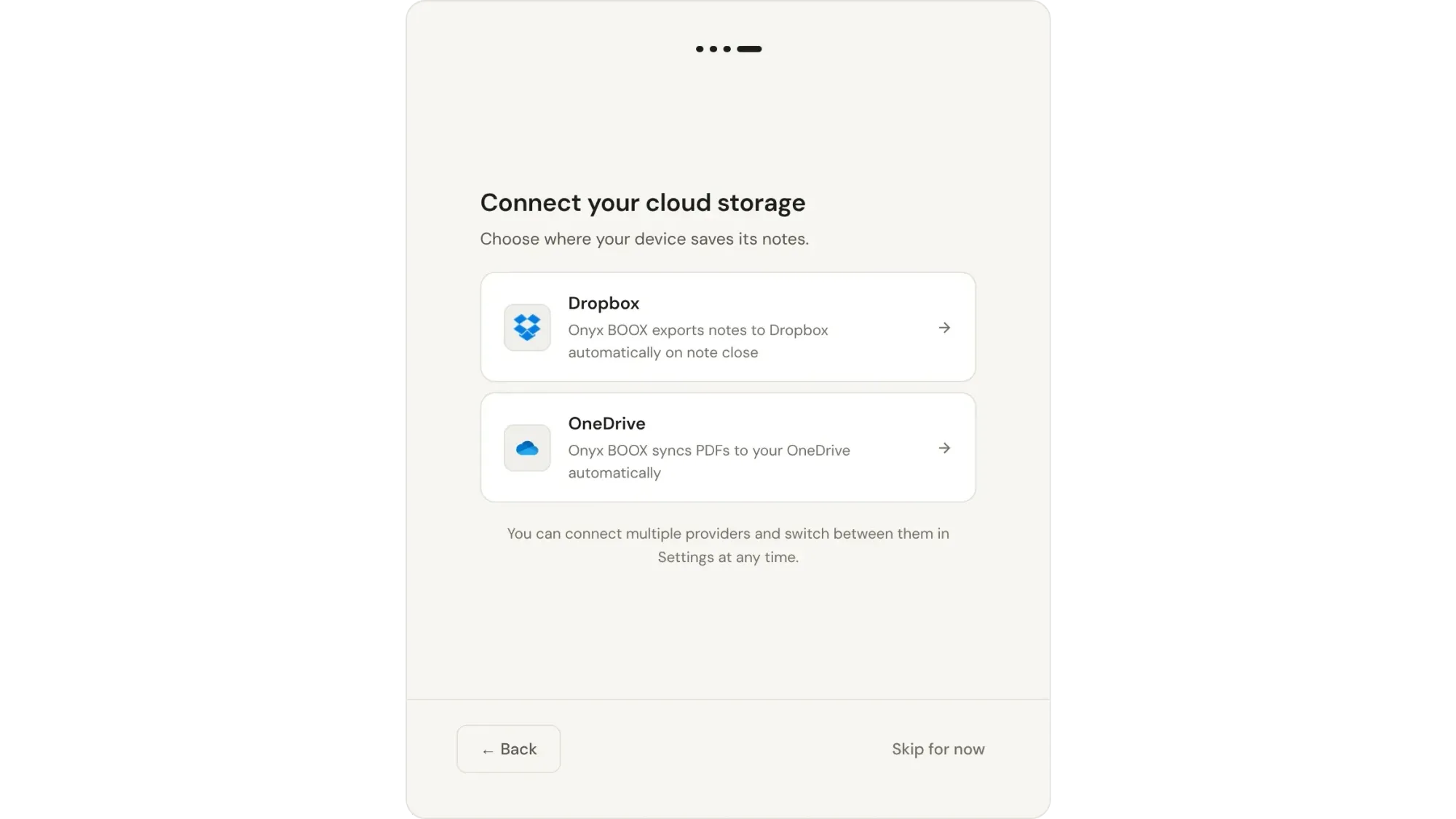
5. Connect Dropbox to Penlo
Back in Penlo, choose Dropbox and sign in to the same account your tablet uses. Then pick the folder where your tablet saves its notebooks. Penlo starts syncing straight away, and reading your handwriting begins as soon as each notebook arrives.
Your first notebook
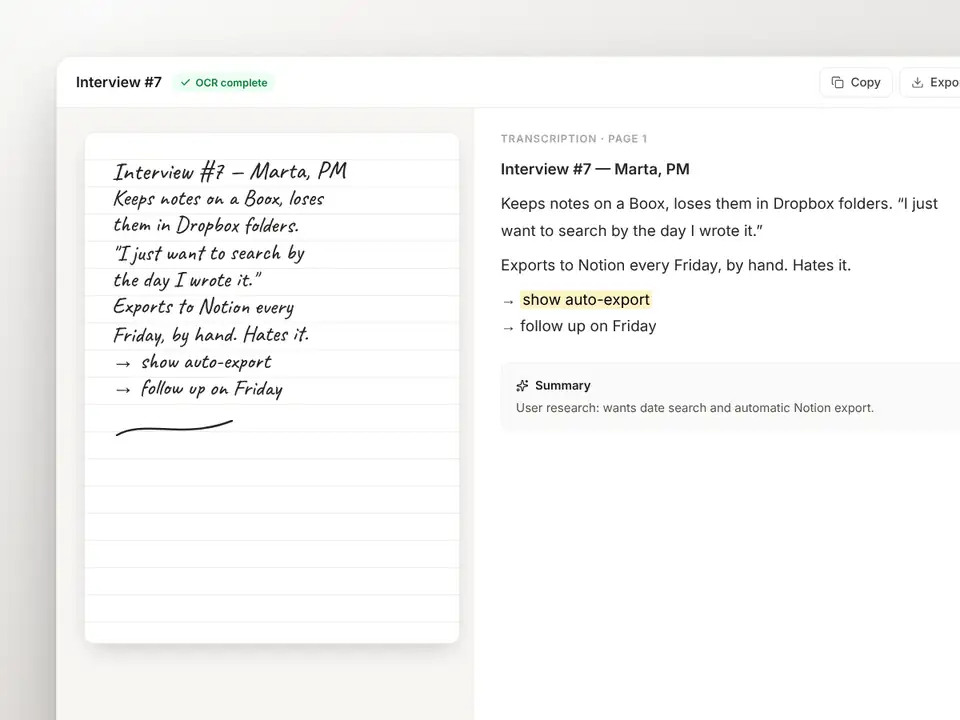
Write something on your tablet and close the note. Within a few moments it appears in your Penlo dashboard. Open it to see each handwritten page next to its text. You can correct any word by clicking into the text, and your changes are kept even if you re-run OCR later.
Common questions
Can I use OneDrive instead of Dropbox?
Yes. Choose OneDrive in step 5 and sign in to the account your tablet saves to. Dropbox is still the better choice if you can, because it lets you import your whole archive of notes in one go. See Dropbox vs OneDrive for e-ink notes.
My notebook hasn't appeared yet. What should I check?
First, check that the PDF is actually in your cloud storage: open Dropbox and look in the folder your tablet saves to. If it's there, make sure that's the folder selected in Penlo under Settings › Sources & sync, then press Sync now.
What happens after the free trial?
You move to the Free plan automatically: 20 OCR pages a month, and you press Sync now to bring in new notebooks. You keep everything you've synced. Upgrade to Pro or Power at any time from Settings › Plan & usage. See plans and pricing.
What's next
That's all it takes: from now on, every note you close on your tablet becomes searchable text in Penlo. Keep going with the rest of the series:
Written by
Builder, product marketer. Creator of Penlo and Ectobuilder. Co-author of The AdTech Book. Writes about turning handwritten notes into searchable, useful text.
Keep reading
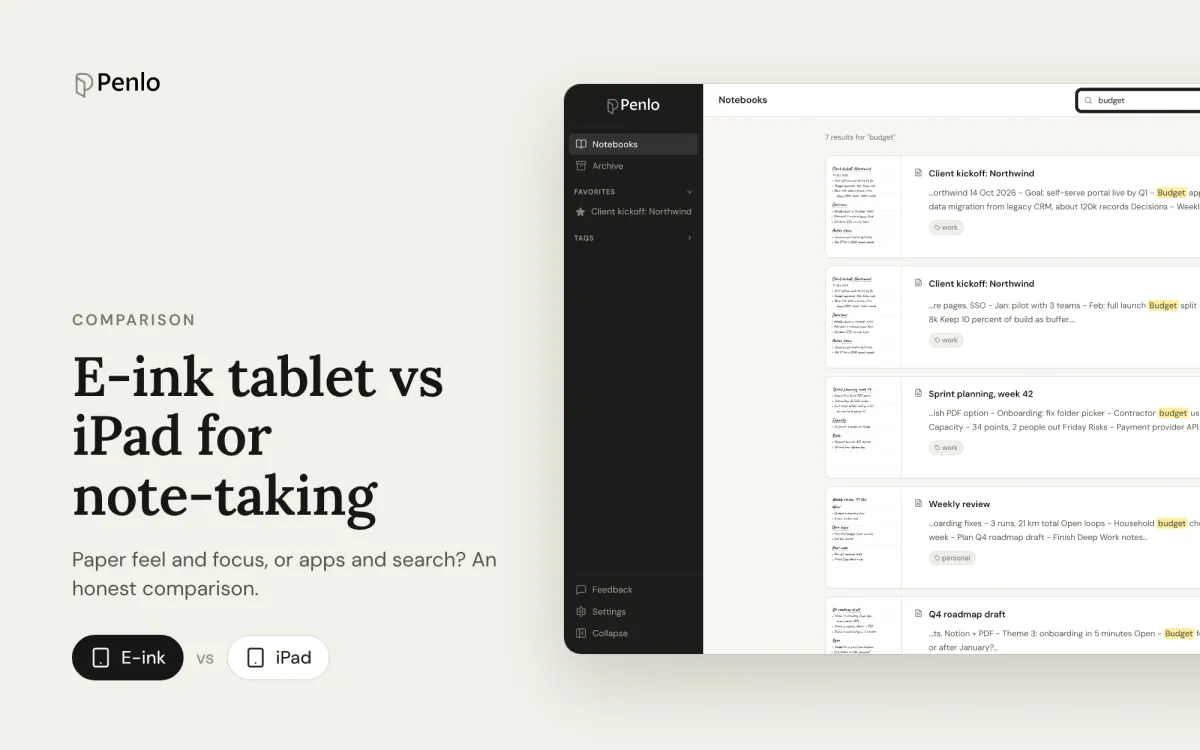
E-ink tablet vs iPad for note-taking: an honest comparison
Paper feel, focus and battery life, or apps, colour and search? How e-ink tablets and the iPad compare for handwritten notes, and how to close the e-ink tablet's one big gap.
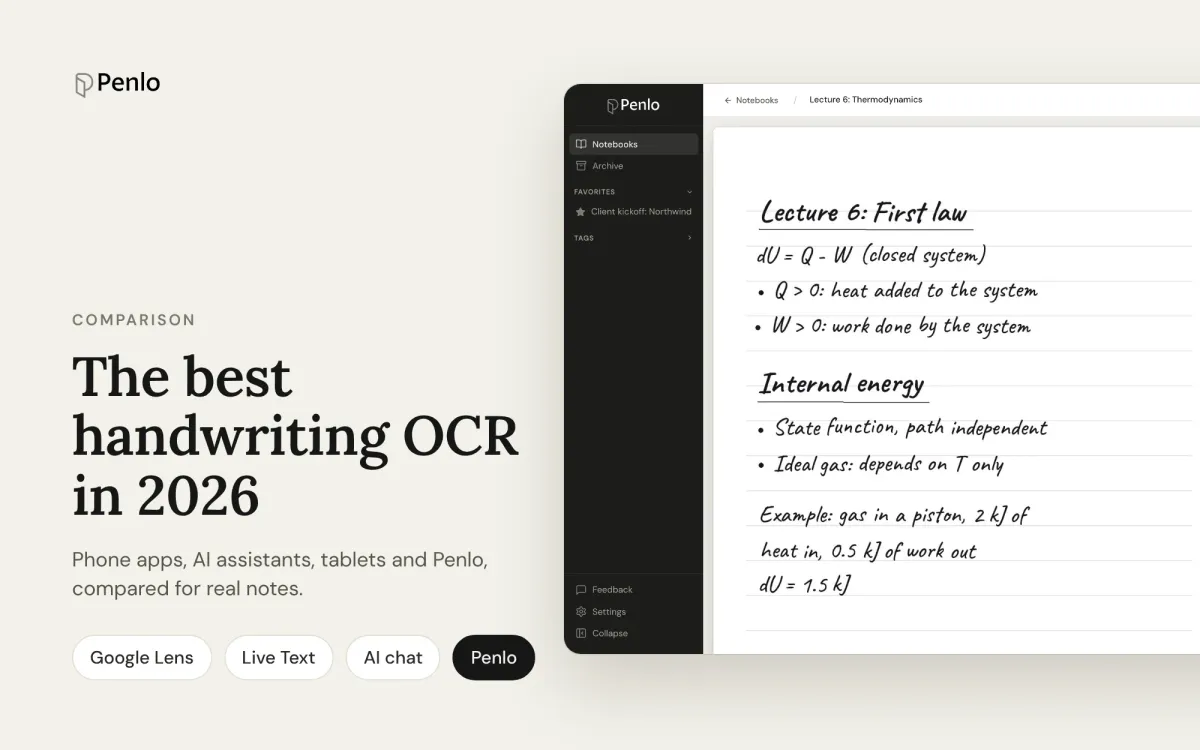
The best handwriting OCR in 2026: what actually works for notes
Google Lens, Apple Live Text, AI assistants, your tablet's own recognition and Penlo, compared for real handwritten notes: messy writing, many pages, and finding the text again.
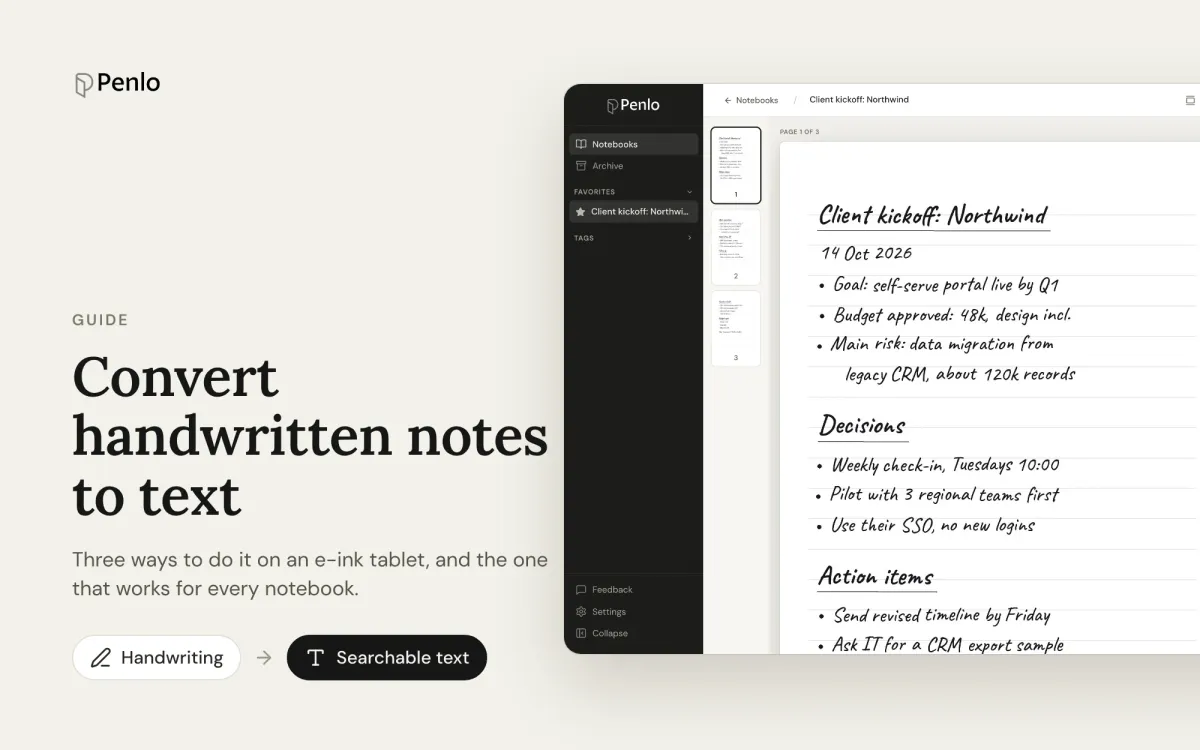
How to convert handwritten notes to text on an e-ink tablet
Three ways to turn handwritten notes into text if you write on an e-ink tablet: on the device, with a phone OCR app, or automatically for every notebook. What each is good for, and where it falls short.