How to convert handwritten notes to text on an e-ink tablet
Three ways to turn handwritten notes into text if you write on an e-ink tablet: on the device, with a phone OCR app, or automatically for every notebook. What each is good for, and where it falls short.

Michal Wlosik
· 5 min read
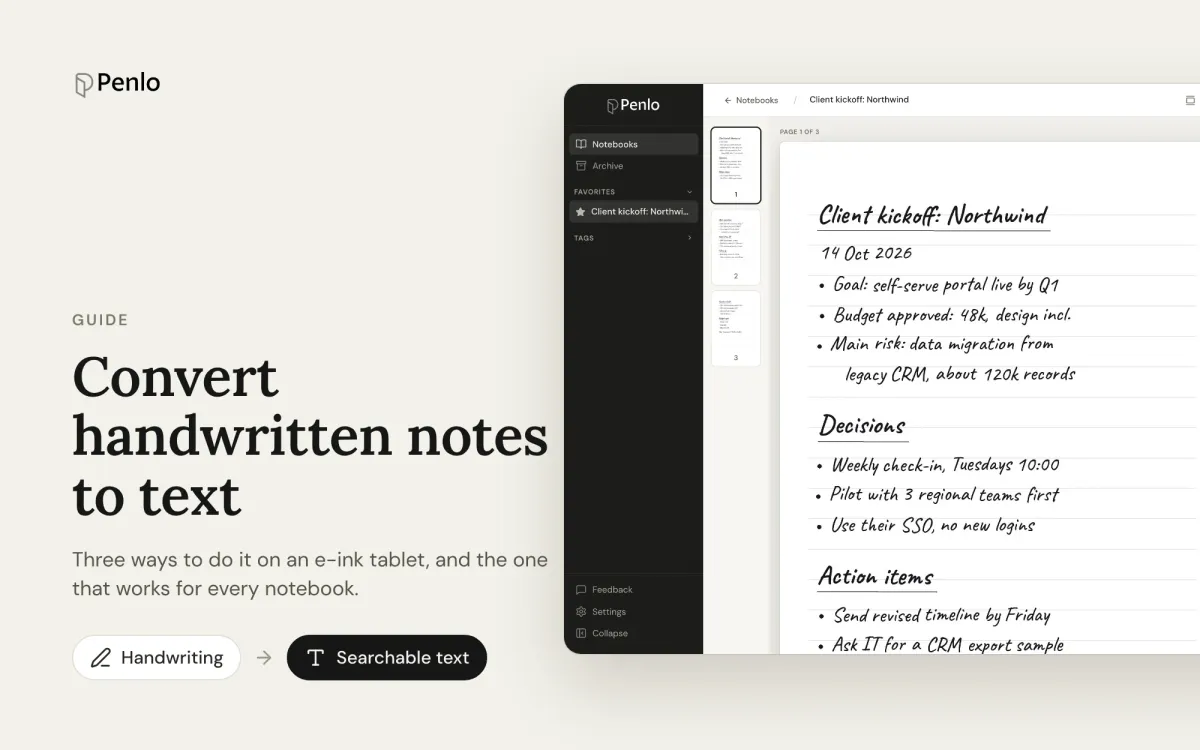
Handwriting on an e-ink tablet looks like text, but to your computer it's a drawing. You can't search it, paste it into an email or send it to Notion until something reads it and turns it into real text. That step is called handwriting recognition, or OCR.
There are three ways to do it if you write on a tablet: convert on the tablet itself, photograph pages with an OCR app, or let a service like Penlo convert every notebook automatically. Here's how each works, what it's good for, and where it falls short.
Option 1: convert on your tablet
Most note-taking tablets can recognise handwriting on the device. How it works differs a lot by brand. As of October 2026:
- Onyx BOOX: the Notes app can recognise the handwriting on a page and convert it to text, which you can copy or export.
- Supernote: create a note with Real-Time Recognition and it converts your writing in the background as you go. Standard notes can be exported as TXT or DOCX, which recognises the handwriting at export. Only handwriting that has been recognised shows up in search.
- reMarkable: choose Convert to text on a page, or select some handwriting and convert just that. The text lands on a new typed page. Conversion is free, but searching your handwriting needs a Connect subscription.
- Kindle Scribe: open a notebook's Share menu and choose Convert to text and email. The text arrives in your inbox as a .txt file.
Good for: grabbing the text of one page when you need it.
Where it falls short: it's one notebook, or one page, at a time. The text stays on the tablet or ends up in an email, and you can't search everything you've written from your laptop or phone. If you use more than one tablet, each one keeps its own text.
Option 2: photograph pages with an OCR app
Apps like Google Lens and Apple Live Text read handwriting from a photo. They're made for paper: point your phone at a notebook page, copy the text out. We compare the options in the best handwriting OCR in 2026.
For tablet notes this is a detour. You'd need to export or screenshot each page, then run it through the app, then put the text somewhere. It works for the odd page, but nobody keeps it up for months of notebooks.
Option 3: convert every notebook automatically
This is what Penlo does. Your tablet saves each notebook as a PDF to Dropbox or OneDrive. Penlo picks it up from there, reads every page with Google Gemini, and gives you the text next to the original page.
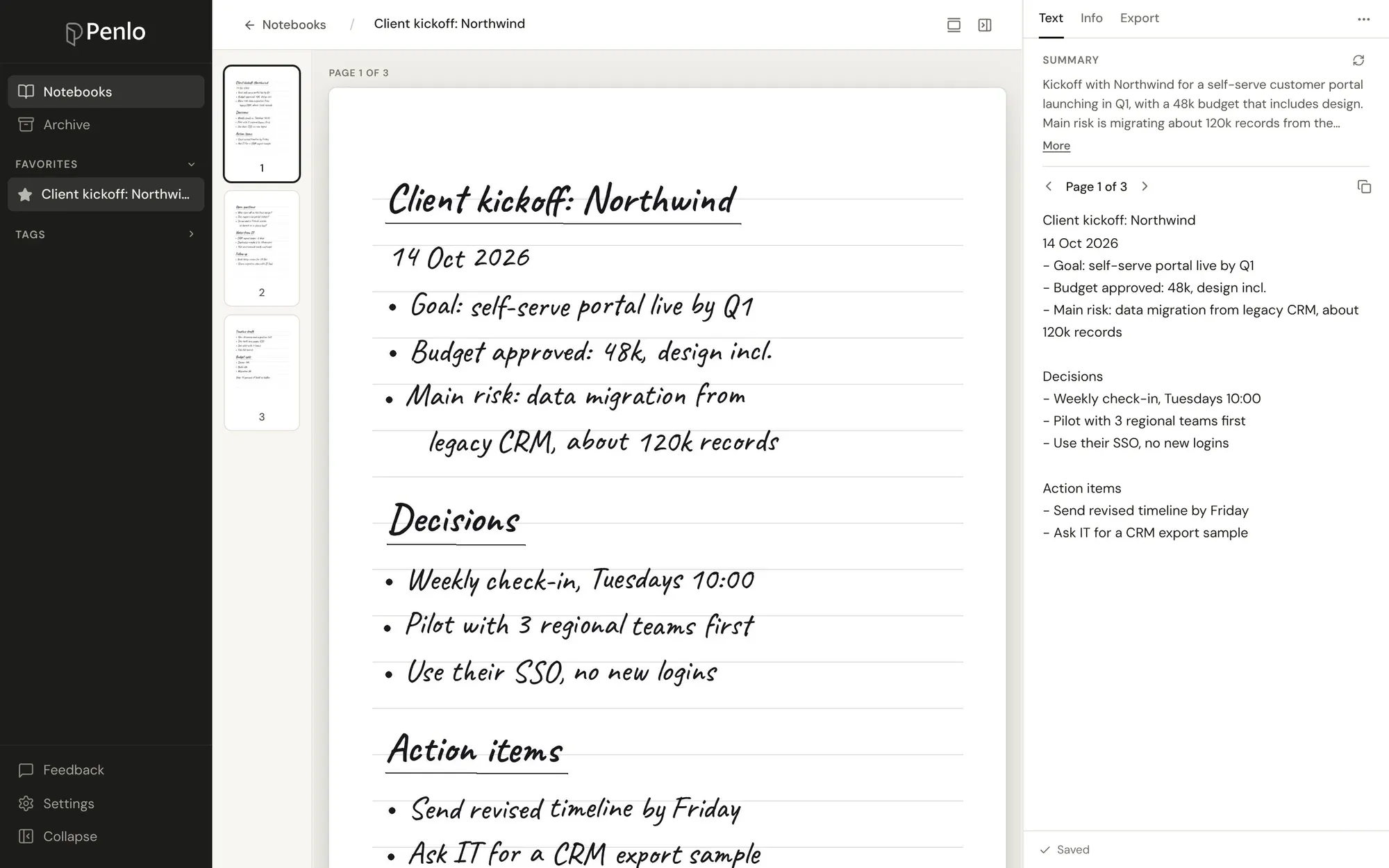
You don't convert anything by hand. New notebooks are read as they arrive, and when you update a notebook on the tablet, Penlo reads the new version.
The text is cleaned up as it goes
Raw handwriting recognition gives you text broken at the end of every line, and the odd misread word. Penlo tidies it as it reads: it joins lines broken at the edge of the page, settles unclear words using the context of the whole page, and fixes punctuation. Each of these is a switch in Settings, so you can turn off any you don't want.
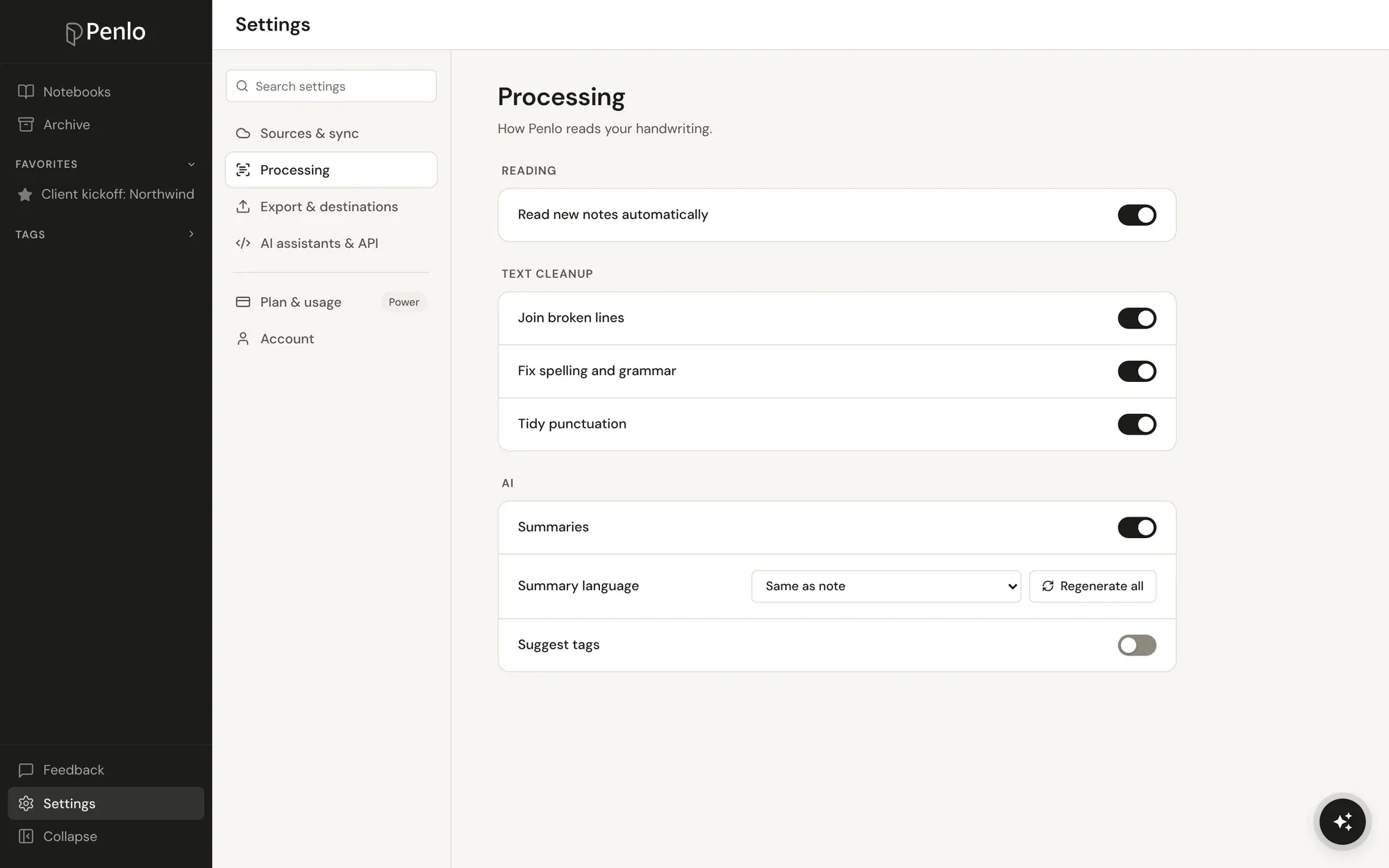
If a word still comes out wrong, fix it in the Text tab. Your correction is kept, even if the notebook is read again later. More on this in Clean text from messy handwriting.
Stop converting notes one page at a time.
Connect your tablet once and every notebook becomes searchable text. Setup takes about five minutes.
Then search everything at once
Once your notes are text, you can search all of them together, from any browser. Penlo shows each match with the notebook, the page and the passage around it.
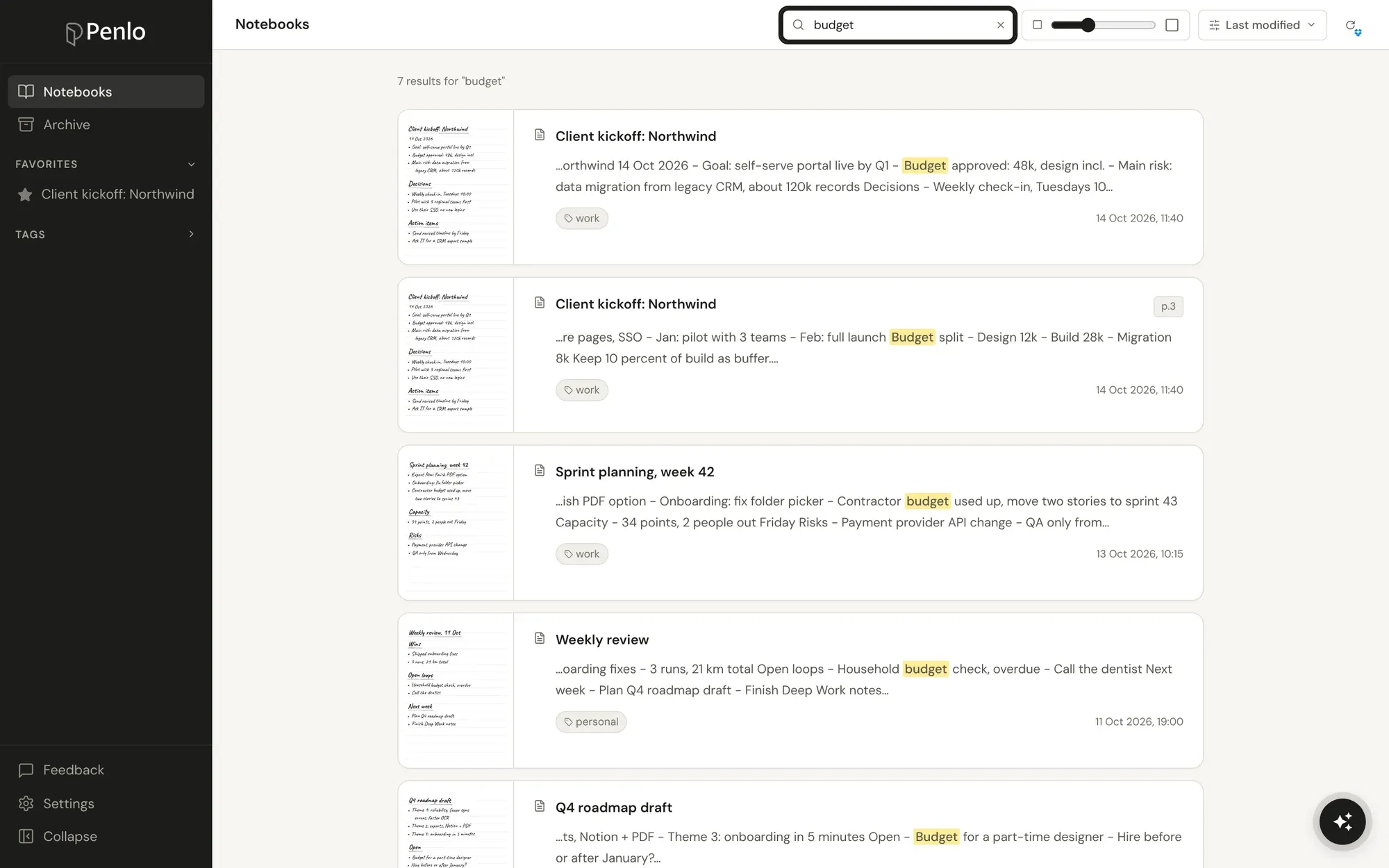
From there the text goes wherever you need it: copy it, download it as Markdown or a searchable PDF, send it to Notion, or ask Penlo AI about it. You can also let Claude and ChatGPT read your notebooks directly.
At a glance
| On the tablet | Phone OCR app | Penlo | |
|---|---|---|---|
| Effort per notebook | Convert each page or notebook | Photograph each page | None after setup |
| Where the text ends up | On the tablet or in an email | On your phone | In Penlo, in any browser |
| Search across all notebooks | Depends on the device | No | Yes |
| Clean-up of broken lines | Depends on the device | No | Yes, switchable |
| Works with several tablets | Each tablet separately | Yes, manually | Yes, one library |
Tips for better results
- Write a title and a date at the top. It makes notebooks easier to find, and gives the recognition context.
- Use headings and bullets. Structure carries over into the text and makes it easier to scan.
- Don't worry about neat handwriting. Reading a whole page in context handles messy writing far better than letter-by-letter recognition. Fix the rare misread once and move on.
- Keep one notes folder. Point your tablet at a single folder in your cloud storage, so everything ends up in one place.
How to set it up
- Make your tablet save notebooks as PDFs to the cloud. BOOX does this automatically every time you close a note (BOOX guide). Supernote, reMarkable and Kindle Scribe export each notebook as a PDF (guide for those three).
- Connect Dropbox or OneDrive in Penlo and choose that folder.
- Wait a minute. Your notebooks appear as text, ready to search.
Penlo works best with Dropbox: BOOX tablets save to it automatically, and Penlo can import your whole existing archive from it in one go. Dropbox vs OneDrive has the details.

Don't have Dropbox yet?
Sign up through our referral link and get 500 MB extra on top of the free 2 GB. (We get a little extra space too.)
The full walkthrough is in Getting started with Penlo.
Written by
Builder, product marketer. Creator of Penlo and Ectobuilder. Co-author of The AdTech Book. Writes about turning handwritten notes into searchable, useful text.
Keep reading
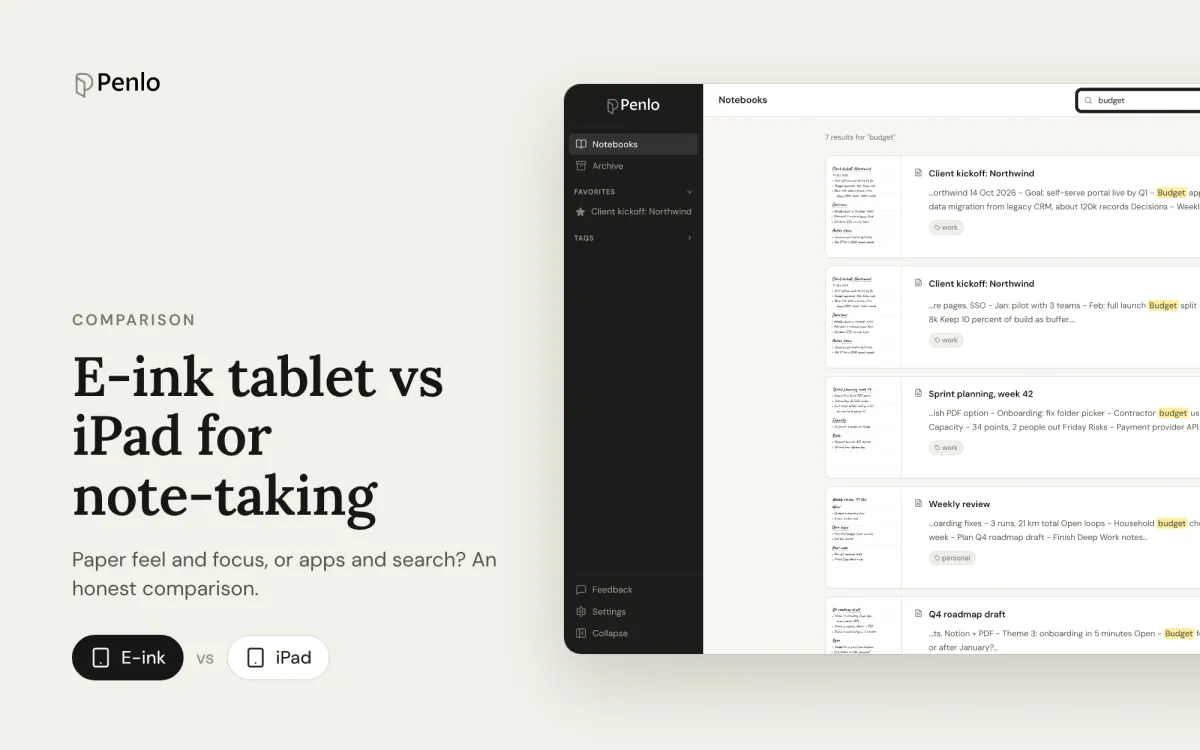
E-ink tablet vs iPad for note-taking: an honest comparison
Paper feel, focus and battery life, or apps, colour and search? How e-ink tablets and the iPad compare for handwritten notes, and how to close the e-ink tablet's one big gap.
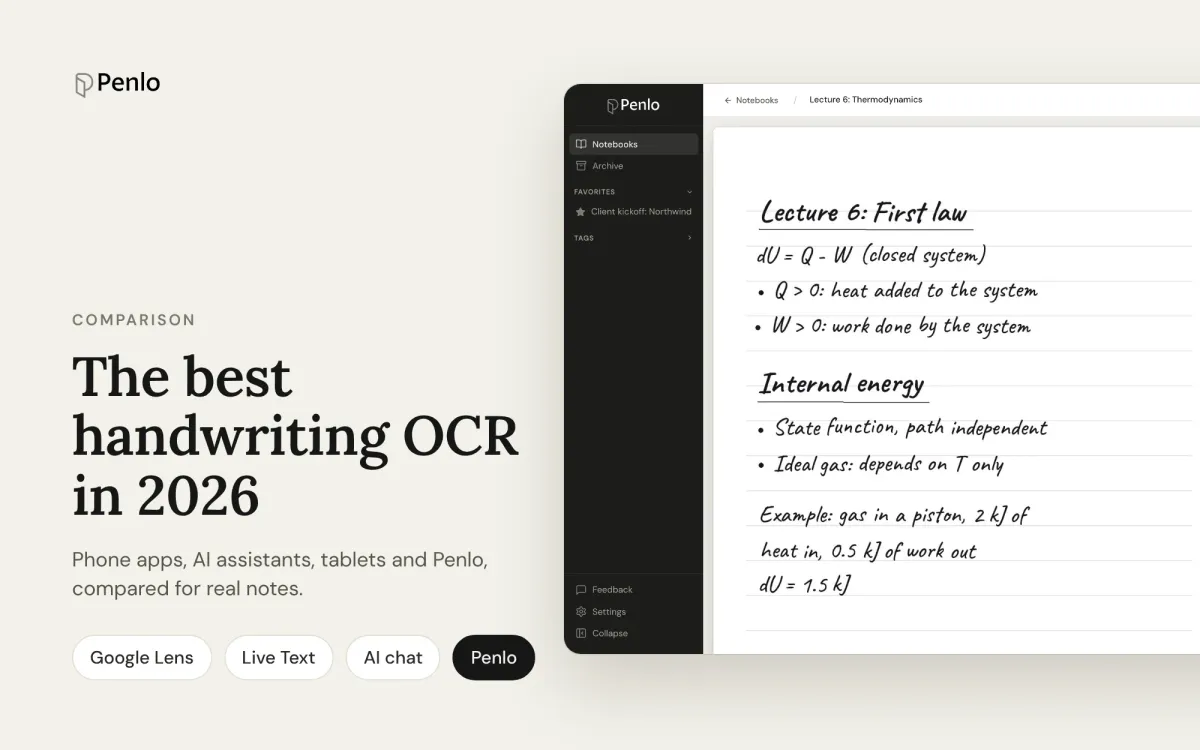
The best handwriting OCR in 2026: what actually works for notes
Google Lens, Apple Live Text, AI assistants, your tablet's own recognition and Penlo, compared for real handwritten notes: messy writing, many pages, and finding the text again.
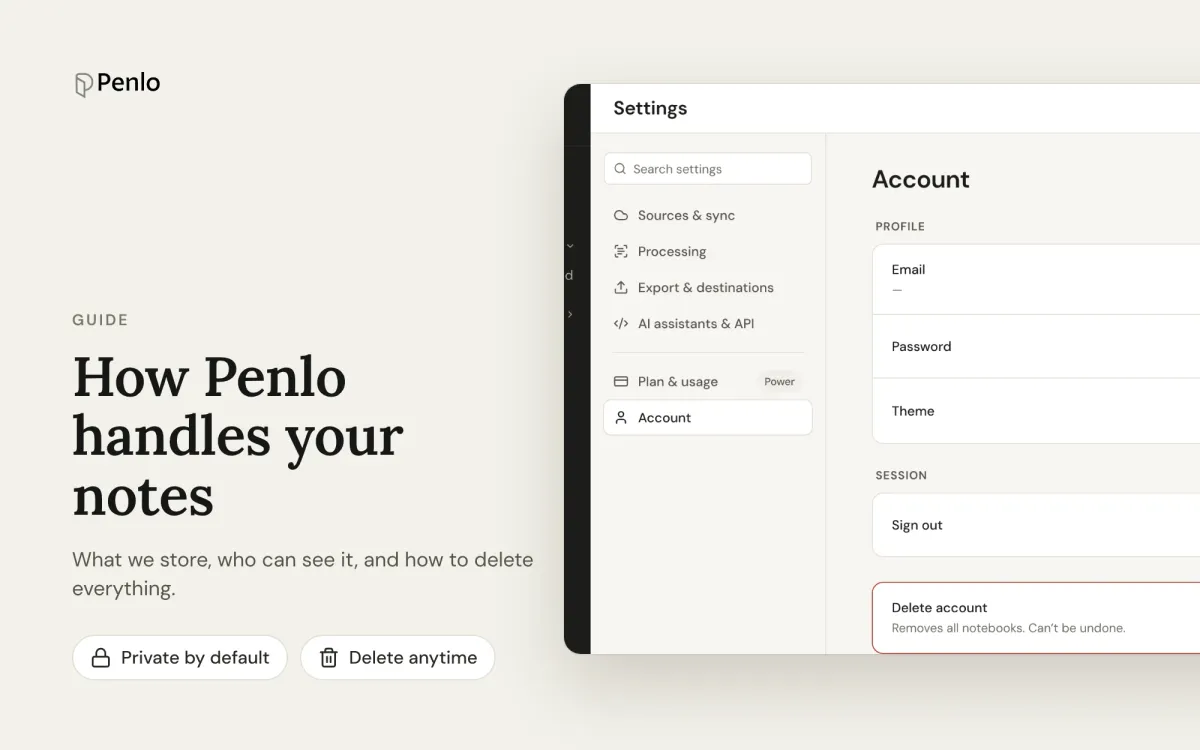
How Penlo handles your notes: privacy and security
What Penlo stores, where it's stored, who can see it, and how to delete everything. A plain-language guide for people who write sensitive things by hand.