How to sync Onyx BOOX notes to Dropbox automatically
Set your BOOX to save every notebook to Dropbox as a PDF the moment you close it, then make the handwriting searchable with Penlo.

Michal Wlosik
· 3 min read
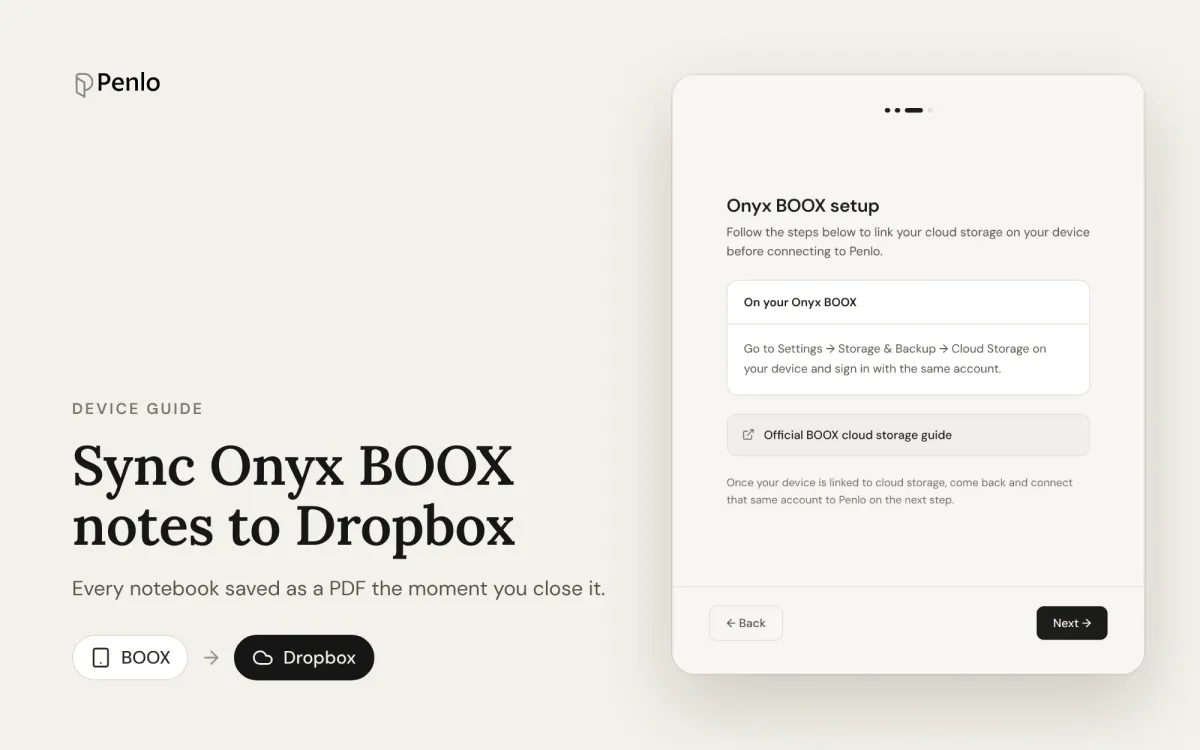
Onyx BOOX tablets are the easiest e-ink devices to get notes off. A BOOX can save every notebook to Dropbox as a PDF automatically, each time you close it, with no export button to remember. This guide sets that up, then shows how to make the handwriting searchable.
What you need
- A BOOX tablet with the built-in Notes app (Note Air, Note Max, Tab, Go and others).
- A Dropbox account. The free Basic plan has 2 GB, which holds a lot of handwritten notebooks.
New to Dropbox? Get 500 MB extra, free.
Sign up through our referral link and you get 500 MB on top of the free 2 GB Basic plan. (We get a little extra space too.)
Step 1: Sign in to Dropbox on your BOOX
- On the tablet, open Settings › Accounts.
- Choose Dropbox and sign in with your Dropbox account.
You can also add a cloud account from the Library, using the cloud storage button. Either way, the account is now linked for the whole tablet.
Step 2: Turn on automatic PDF export
In the Notes app settings, switch on the option to export notebooks as PDF automatically when you close them. The exact name of the setting varies a little between firmware versions; look for auto export or export as PDF in the Notes settings.
From now on, every time you close a notebook, your BOOX writes a fresh PDF of it to Dropbox. If you want to push a note without closing it, use Sync from the notebook's toolbar.
Step 3: Find the folder in Dropbox
Open Dropbox on your computer and look for the folder your BOOX created. On current firmware it's usually:
/onyx/<your device>/Notebooksfor example
/onyx/NoteAir2/NotebooksOlder BOOX firmware that linked Dropbox from inside the Notes app used /Apps/onyx-knote/<Device>-Notepads instead. Whichever you have, note the path: you'll need it in the next step.
Step 4: Make the notes searchable with Penlo
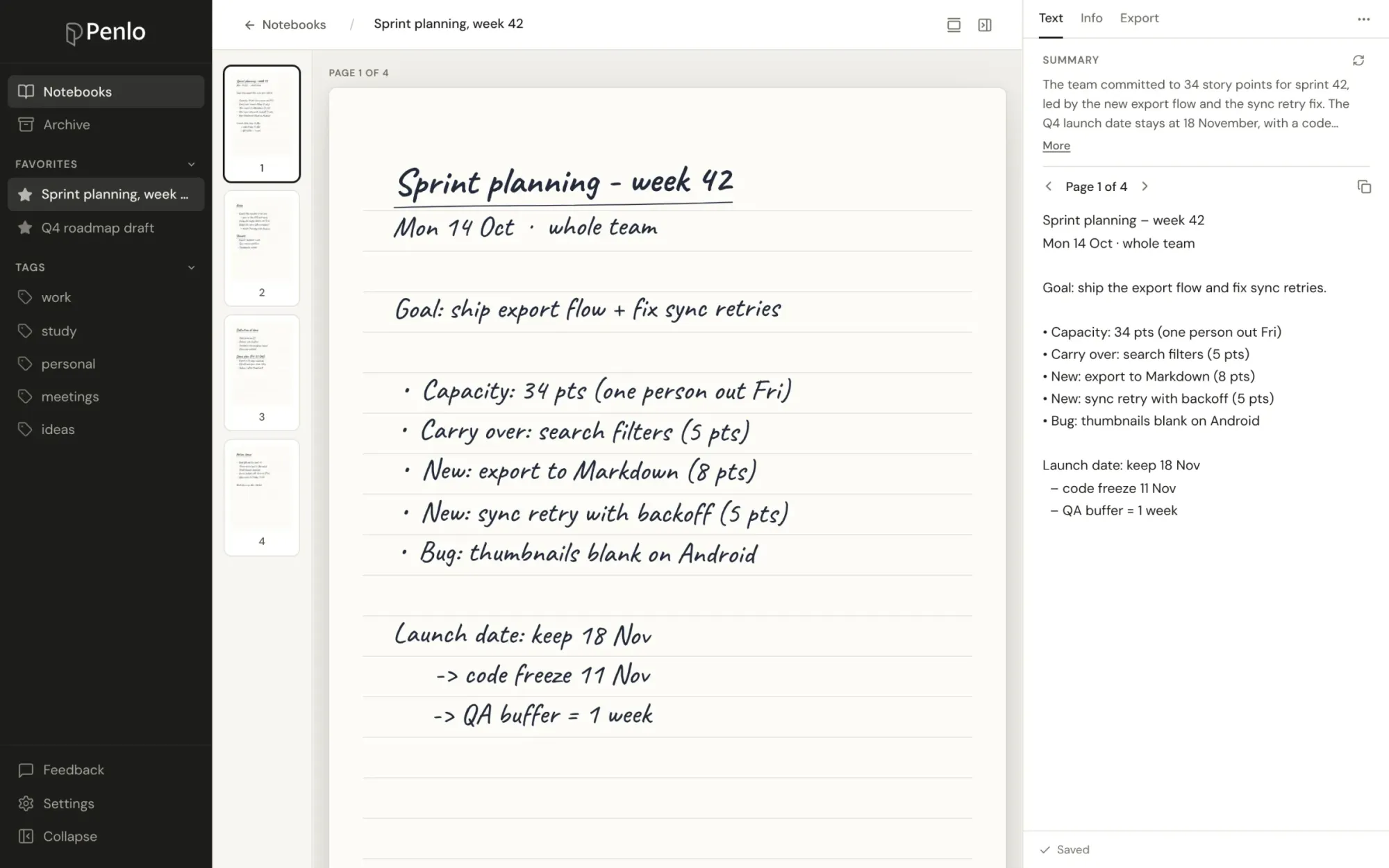
A folder of PDFs is a backup, not a notebook you can search. Penlo reads every PDF in that folder, transcribes your handwriting, and makes it searchable across all your notebooks.
- Sign up at notes.penlo.app. You get a 7-day trial of the top plan, no card needed.
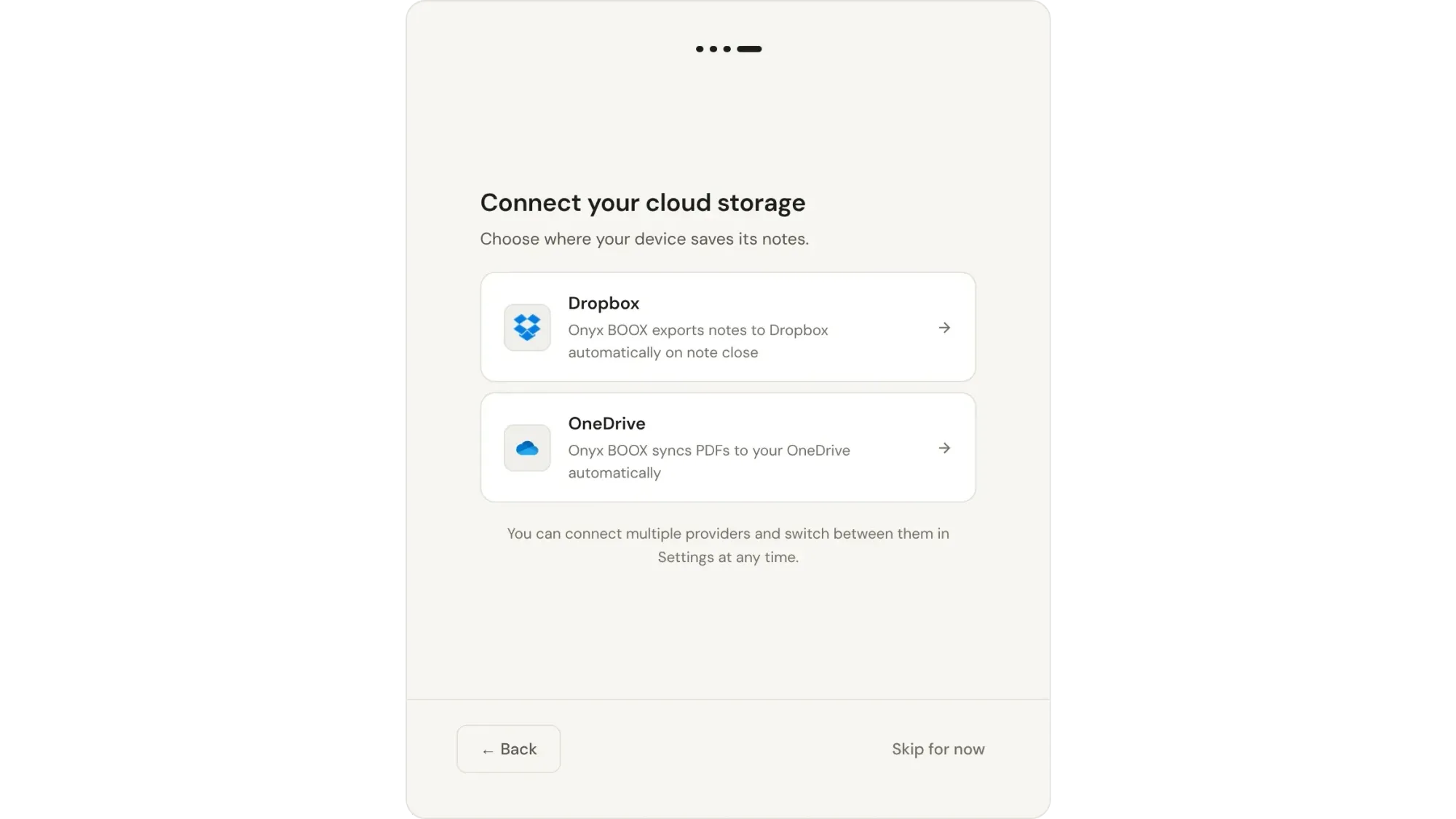
- Pick Onyx BOOX as your device, then Dropbox as your storage, and sign in to the same Dropbox account.
- Choose the folder from step 3.
Already have a backlog of notes in that folder? Use Import all notes in Penlo's Settings › Sources & sync to bring them all in at once.
What happens from now on
You write on your BOOX and close the note. The PDF lands in Dropbox, Dropbox lets Penlo know, and within moments the notebook is in Penlo: transcribed, tidied up, summarised and searchable.
Troubleshooting
My notebook isn't in Dropbox
Check the tablet is online, the Dropbox account is still signed in under Settings › Accounts, and the auto-export option is on. Then open the notebook and close it again, or tap Sync in its toolbar.
It's in Dropbox but not in Penlo
Make sure the folder chosen in Penlo (Settings › Sources & sync) is the one the PDF is in, then press Sync now.
Can I use OneDrive instead?
Yes: link OneDrive under Settings › Accounts instead, and pick OneDrive in Penlo. Dropbox has one extra: Penlo can import your whole archive from it in one go. See Dropbox vs OneDrive for e-ink notes.
Written by
Builder, product marketer. Creator of Penlo and Ectobuilder. Co-author of The AdTech Book. Writes about turning handwritten notes into searchable, useful text.
Keep reading
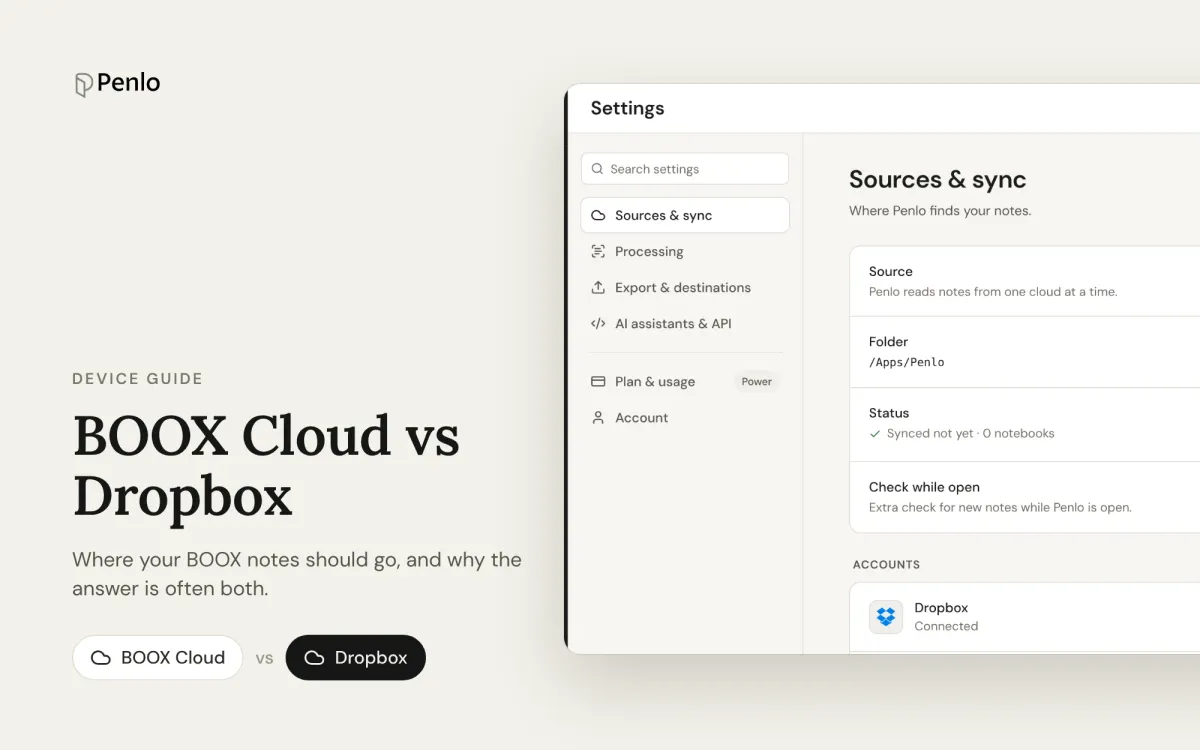
BOOX Cloud vs Dropbox: where should your BOOX notes go?
BOOX Cloud keeps your notes editable on BOOX devices. Dropbox turns every notebook into a PDF any app can read. What each does, what it doesn't, and why most people should use both.
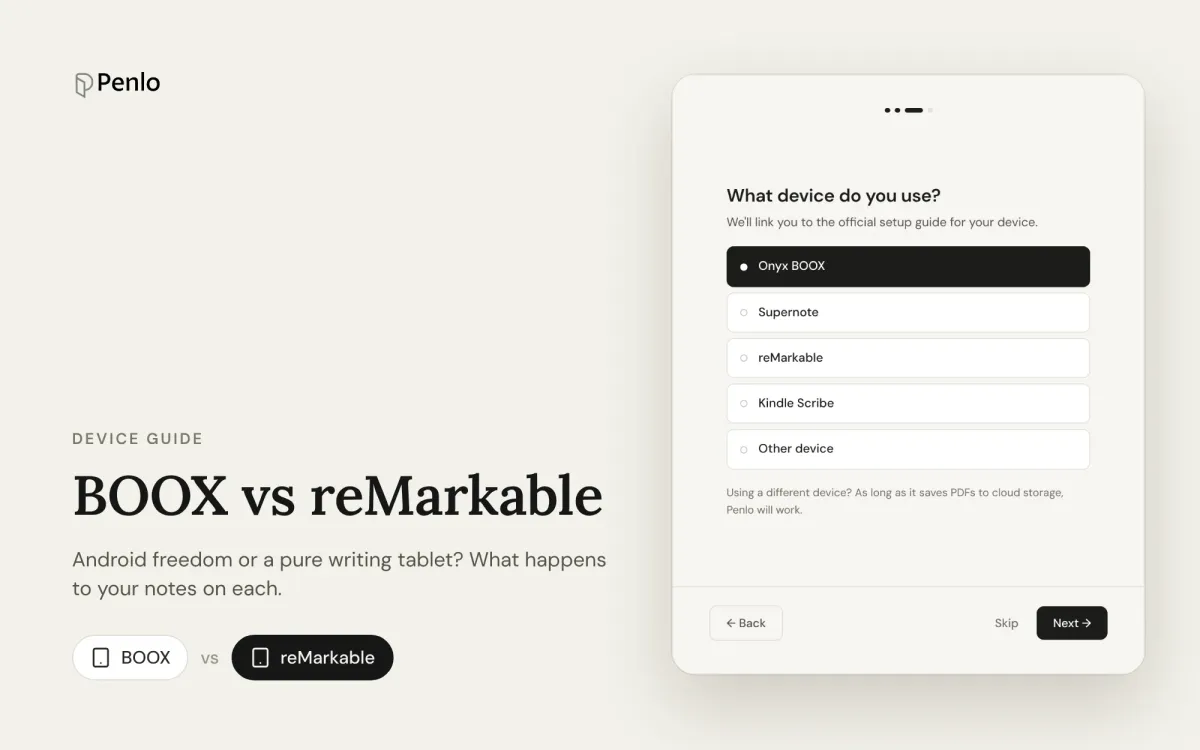
BOOX vs reMarkable for note-taking: Android freedom or a pure writing tablet?
BOOX or reMarkable? A comparison of what happens to your notes on each: apps, handwriting to text, search, cloud sync, subscriptions and getting notebooks off the tablet.
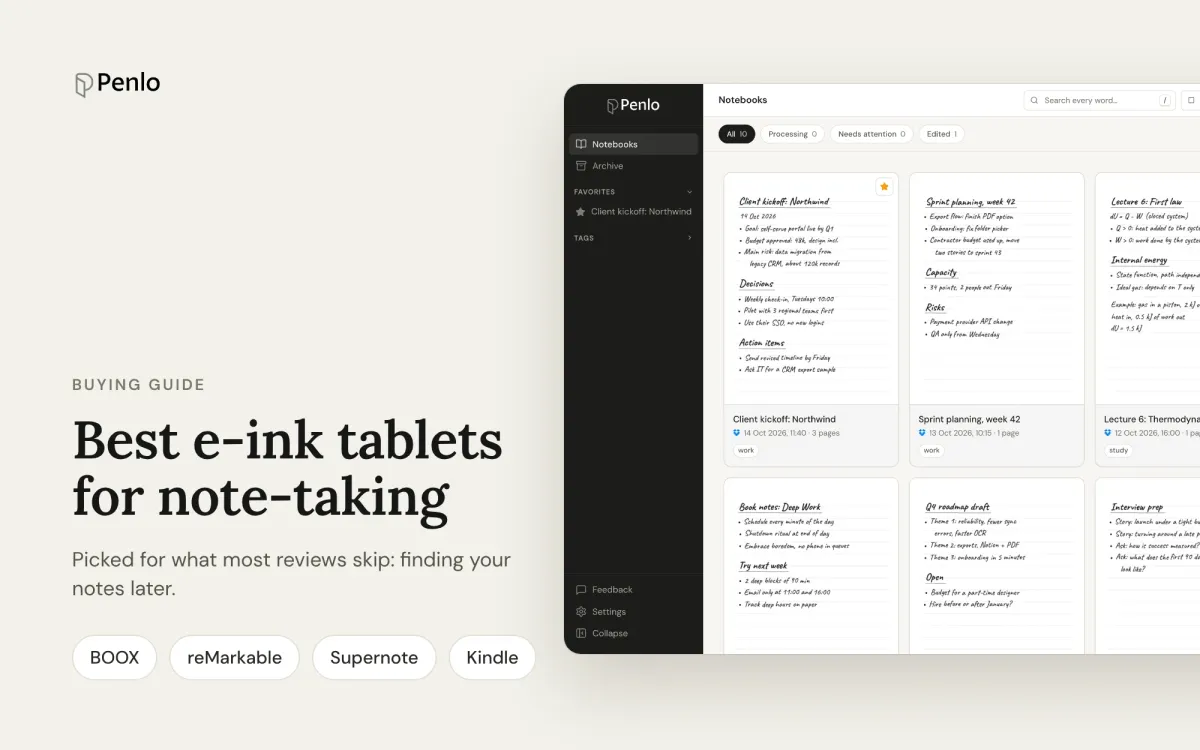
The best e-ink tablets for note-taking in 2026, if you want to find your notes later
BOOX, reMarkable, Supernote or Kindle Scribe? The best note-taking tablets, picked for what most reviews skip: turning handwriting into text, searching it, and getting notebooks off the device.