
Sync your BOOX to Penlo without Dropbox or OneDrive
Penlo for Android runs on your BOOX itself. Pair it with a QR code, pick your notes folder, and every notebook you close uploads straight to Penlo. No cloud account to connect.

Michal Wlosik
· 5 min read
Until now, getting notes from a BOOX into Penlo meant a detour through the cloud: BOOX exported each notebook to Dropbox or OneDrive, and Penlo picked it up from there. It worked, but it meant one more account to connect, one more folder to pick, and one more thing that could quietly stop syncing.
Penlo for Android removes the detour. Install Penlo on the BOOX itself and it reads the notebooks your tablet saves, then uploads them straight to your Penlo account in the background. Close a notebook, and a few minutes later its pages are searchable on your phone and computer.
Get it on Google Play (coming soon)
What changes
| Through Dropbox or OneDrive | Penlo on your BOOX | |
|---|---|---|
| Accounts to connect to Penlo | Your cloud account | None |
| Setup | Bind the cloud on BOOX, connect it in Penlo, pick the folder | Scan a QR code, pick the folder |
| Where your PDFs travel | BOOX, then the cloud, then Penlo | BOOX, then Penlo |
| Edited notebooks | Updated in place | Updated in place |
| Works with | Every tablet that saves PDFs to the cloud | BOOX tablets with Google Play |
Dropbox and OneDrive still work exactly as before. If you write on a reMarkable, Supernote or Kindle Scribe, nothing changes for you. If you own a BOOX, you can now pick the shorter route.
What you need
- A BOOX tablet with Google Play turned on. On most models: Settings › Apps › turn on Google Play, then sign in.
- One cloud account switched on in BOOX. BOOX only writes notebook PDFs to its
notefolder when one cloud account is enabled under Settings › Storage & Backup › Cloud Storage. Any one works, and you don't connect it to Penlo. Penlo reads the PDF straight from the tablet. - A Penlo account. Free to start. On the Free plan you sync from one source: your BOOX or one cloud account.
Step 1: Link the tablet to your account
Open Penlo on the BOOX and tap Link this tablet. Penlo shows a QR code and an eight-character code. There are three ways to approve it, and none of them involves typing a password on the e-ink screen.
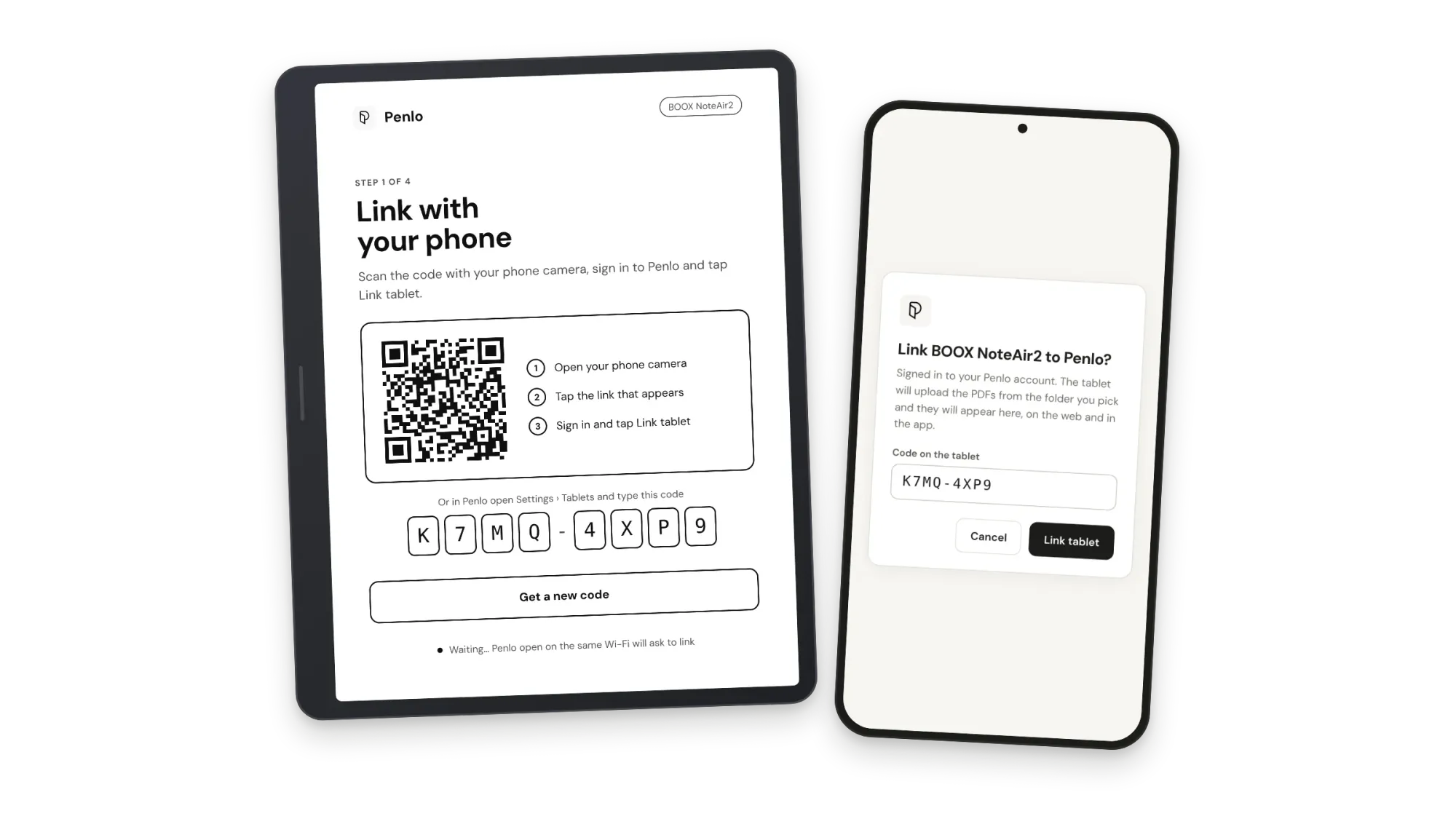
- Scan the QR code with your phone camera, sign in to Penlo if you need to, and tap Link tablet.
- Be on the same Wi-Fi. If Penlo is open in a browser on your phone or computer on the same network, it notices the waiting tablet and asks Link BOOX NoteAir2? One tap, nothing to type.
- Type the code in Penlo under Settings › Tablets.
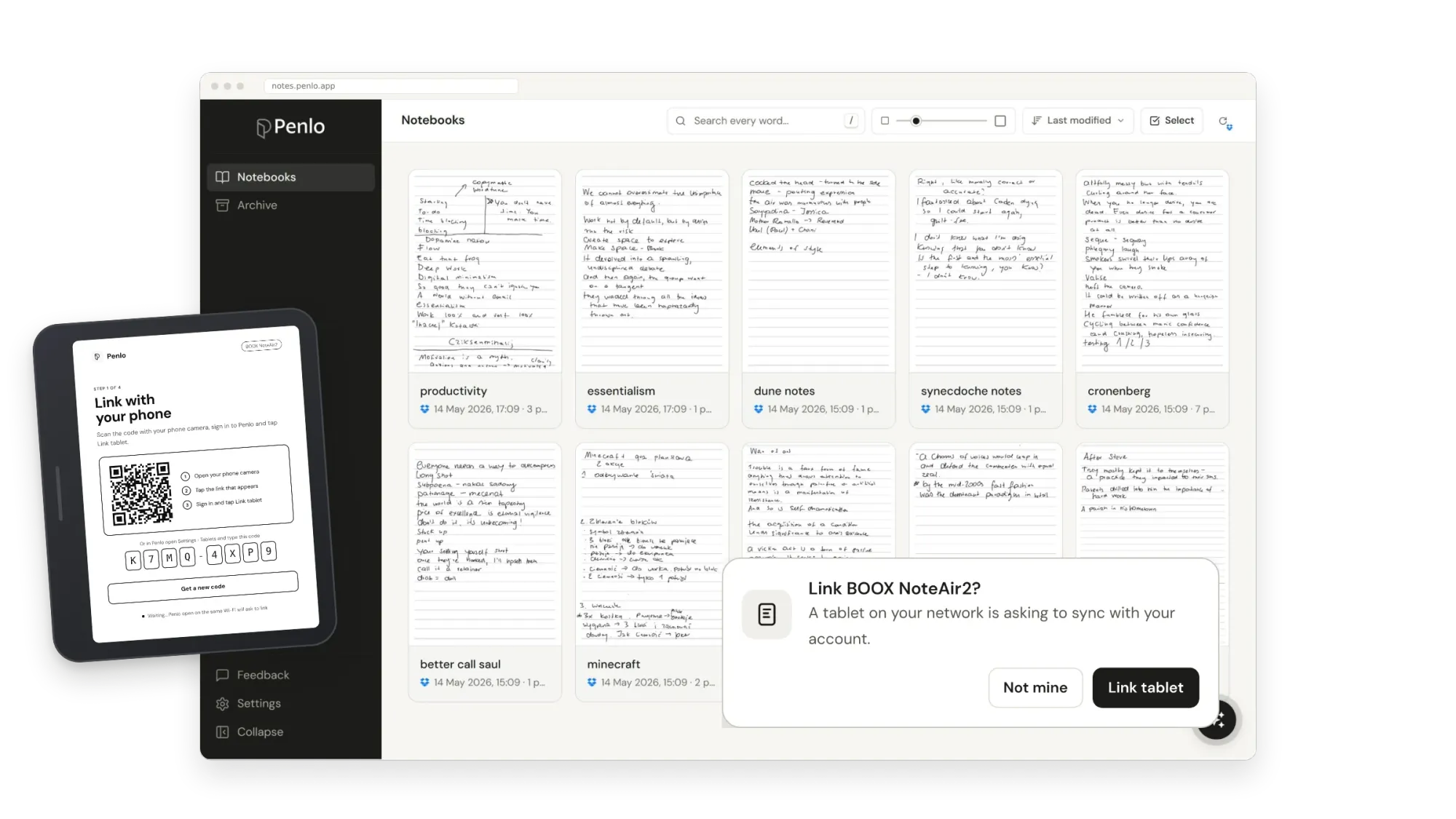
The tablet notices the approval within a few seconds and moves to the next step on its own.
Steps 2 to 4: PDFs, folder, background
Every step on the tablet is one screen with one card and two buttons, so it reads well on e-ink.
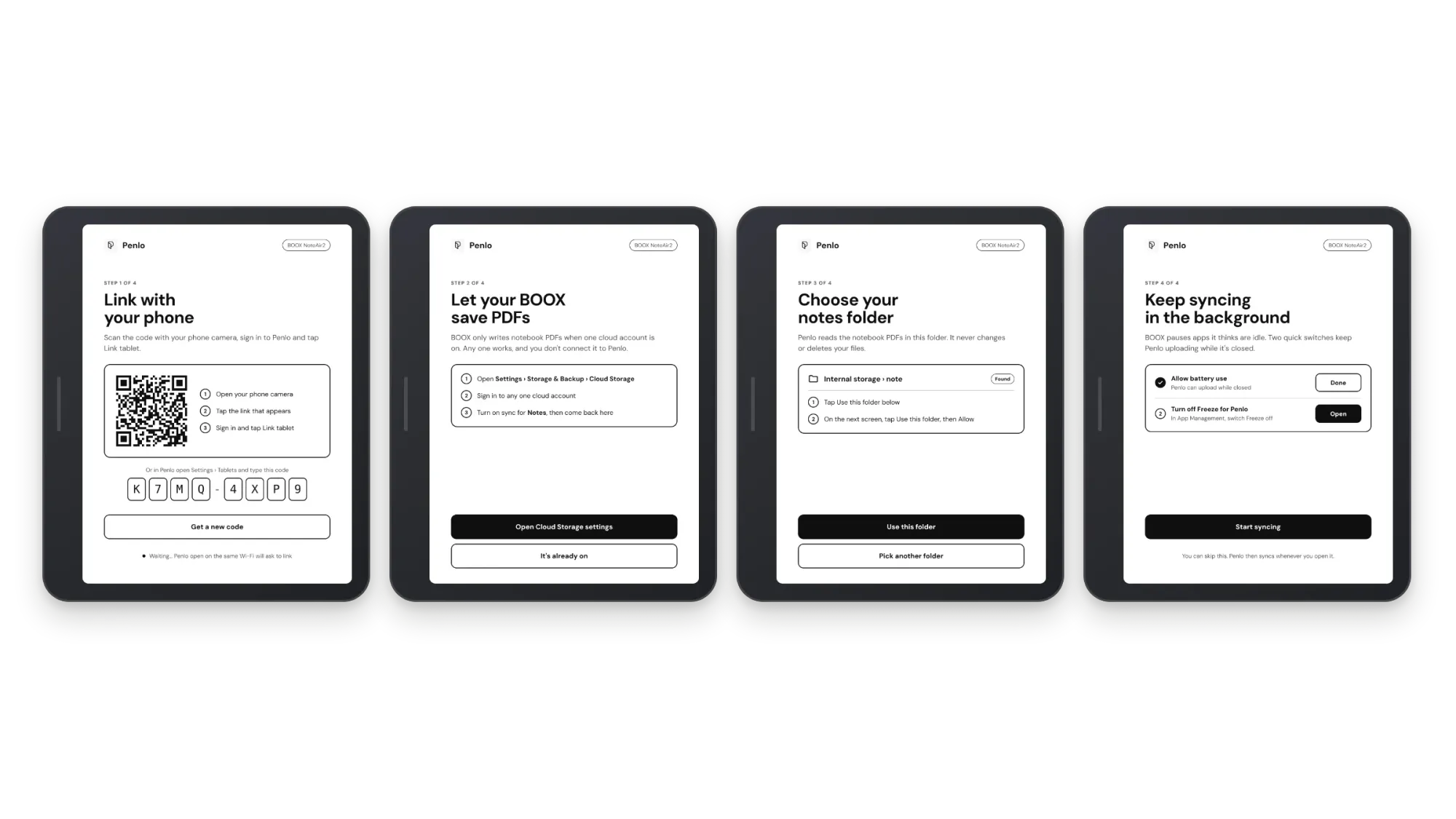
- Let your BOOX save PDFs. If you already use BOOX cloud sync for notes, tap It's already on. If not, Penlo opens Cloud Storage settings: sign in to any one account and turn on sync for Notes.
- Choose your notes folder. On most BOOX tablets it's
Internal storage › note, and Penlo opens straight into it. Tap Use this folder, then Allow. Penlo can only read this folder, and it never changes or deletes your files. - Keep syncing in the background. BOOX freezes apps it thinks are idle. Allow battery use and switch off Freeze for Penlo, and uploads keep going while the app is closed. You can skip this: Penlo then syncs whenever you open it.
After setup
Penlo checks your notes folder on its own and uploads new and changed notebooks. BOOX rewrites a notebook's PDF every time you edit it, and Penlo recognises it by its place in the folder, so an edited notebook updates the same notebook in Penlo instead of creating a copy. Unchanged files are skipped.
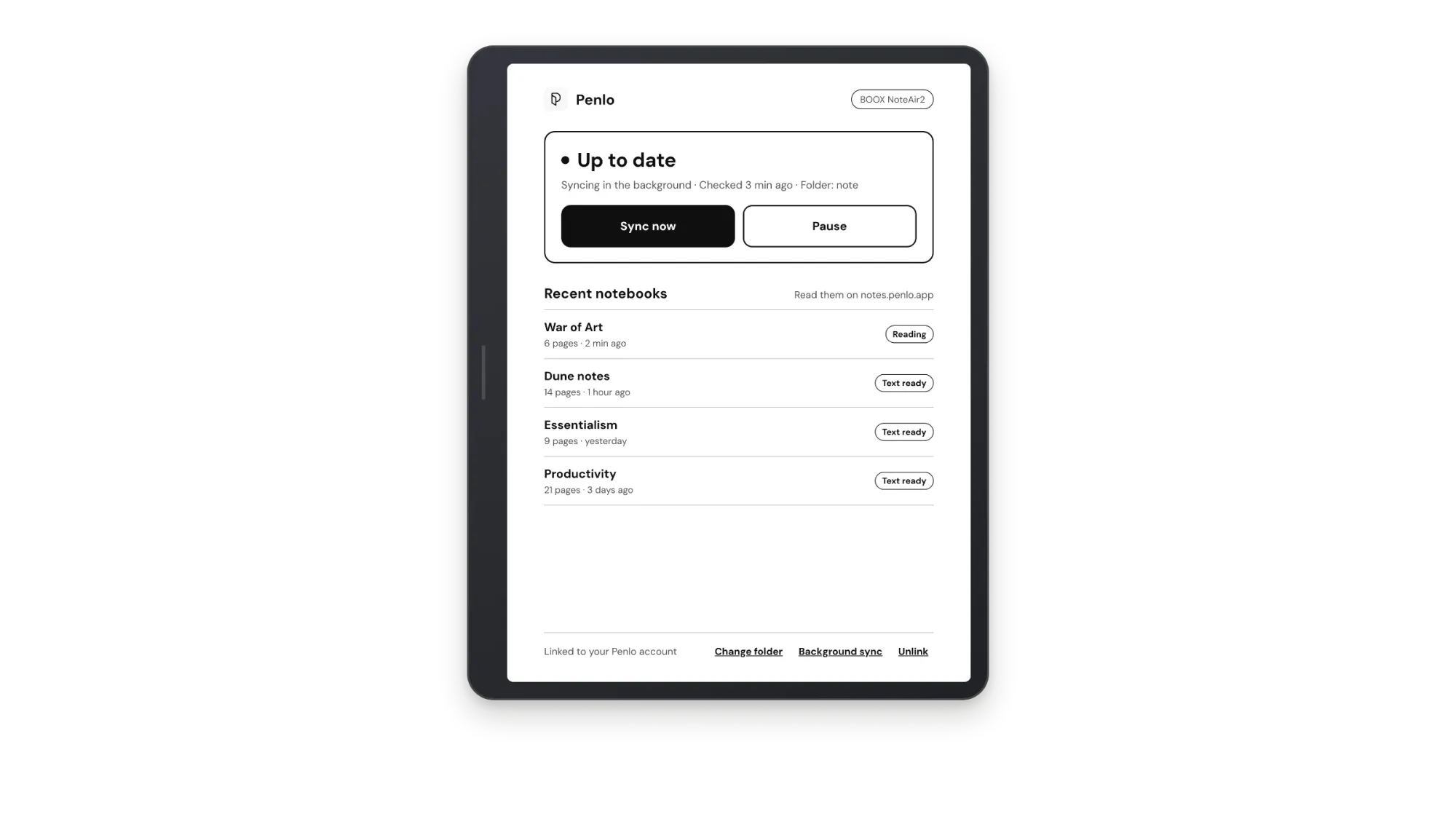
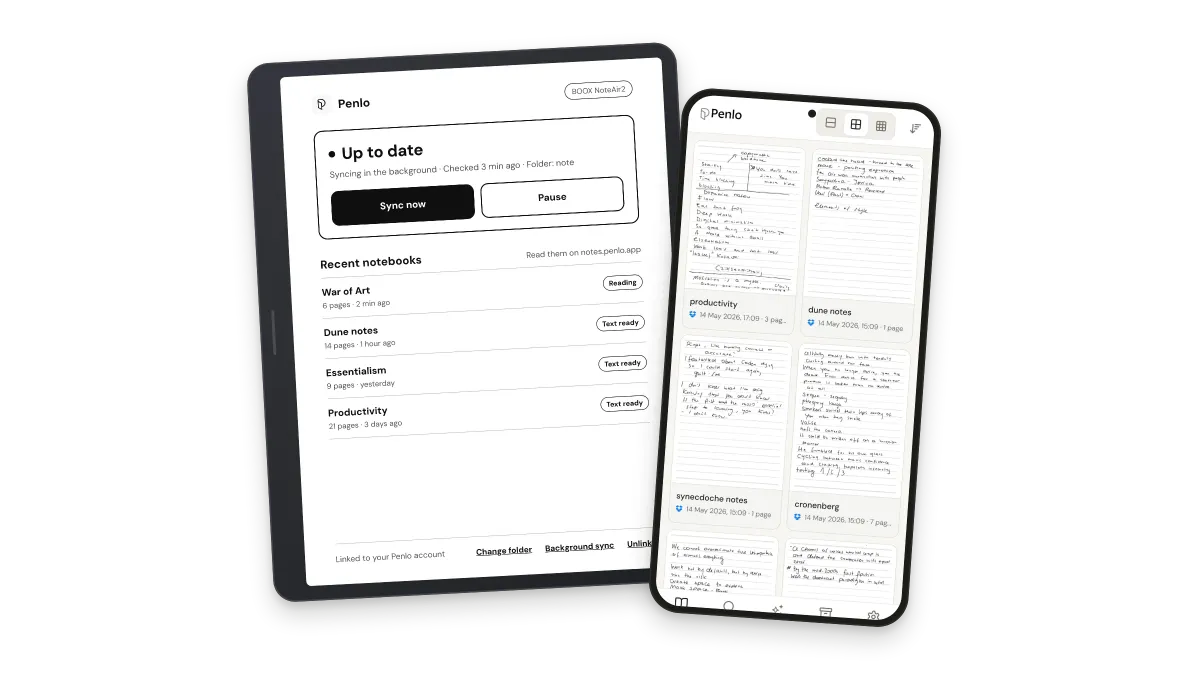
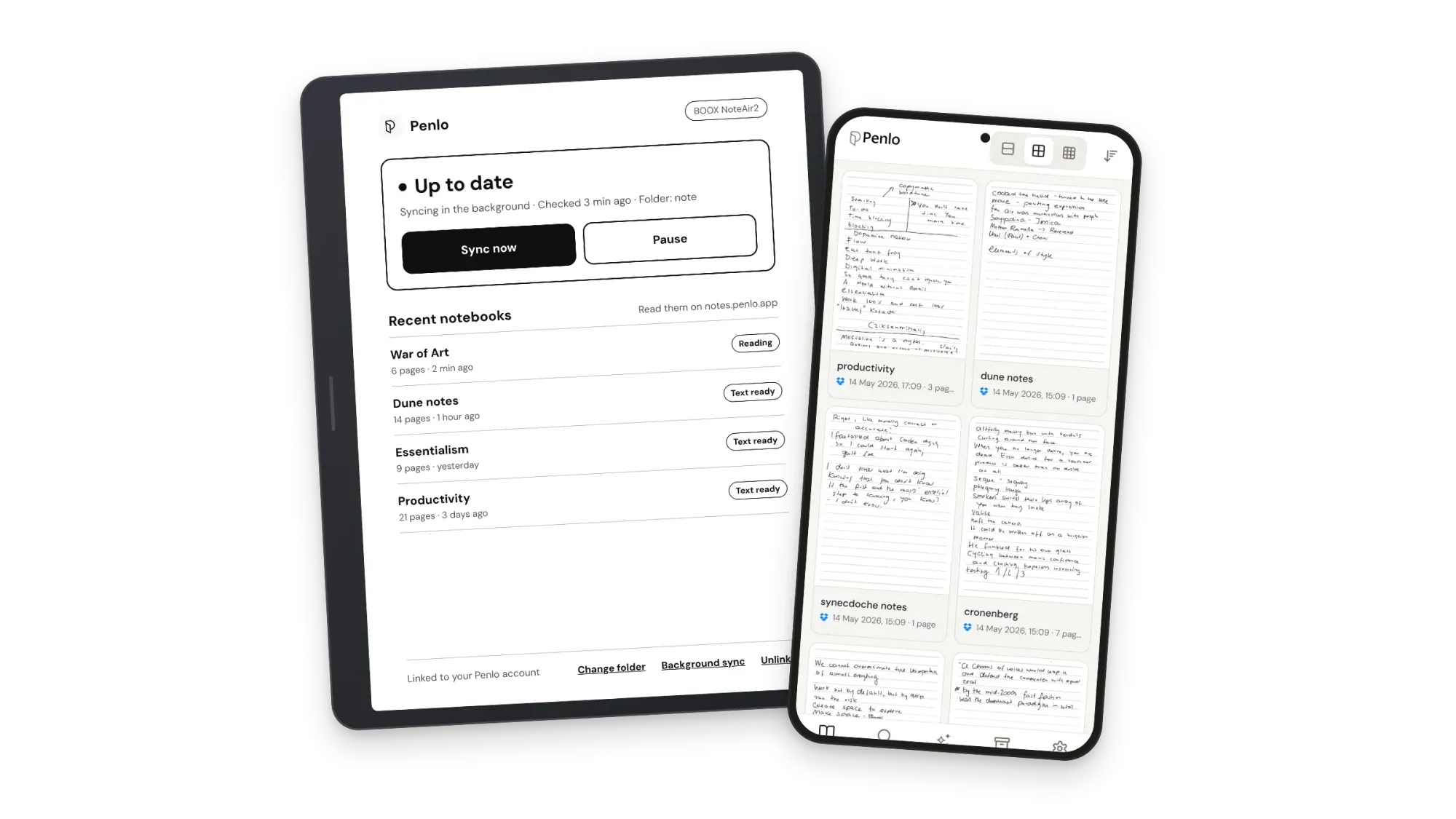
Opening Penlo on the BOOX shows the status screen: when it last checked, a Sync now button, Pause, and your recent notebooks as they move from Uploaded to Reading to Text ready. On the web, notebooks from the tablet carry the Penlo logo where Dropbox notebooks carry the Dropbox one.
And on your phone
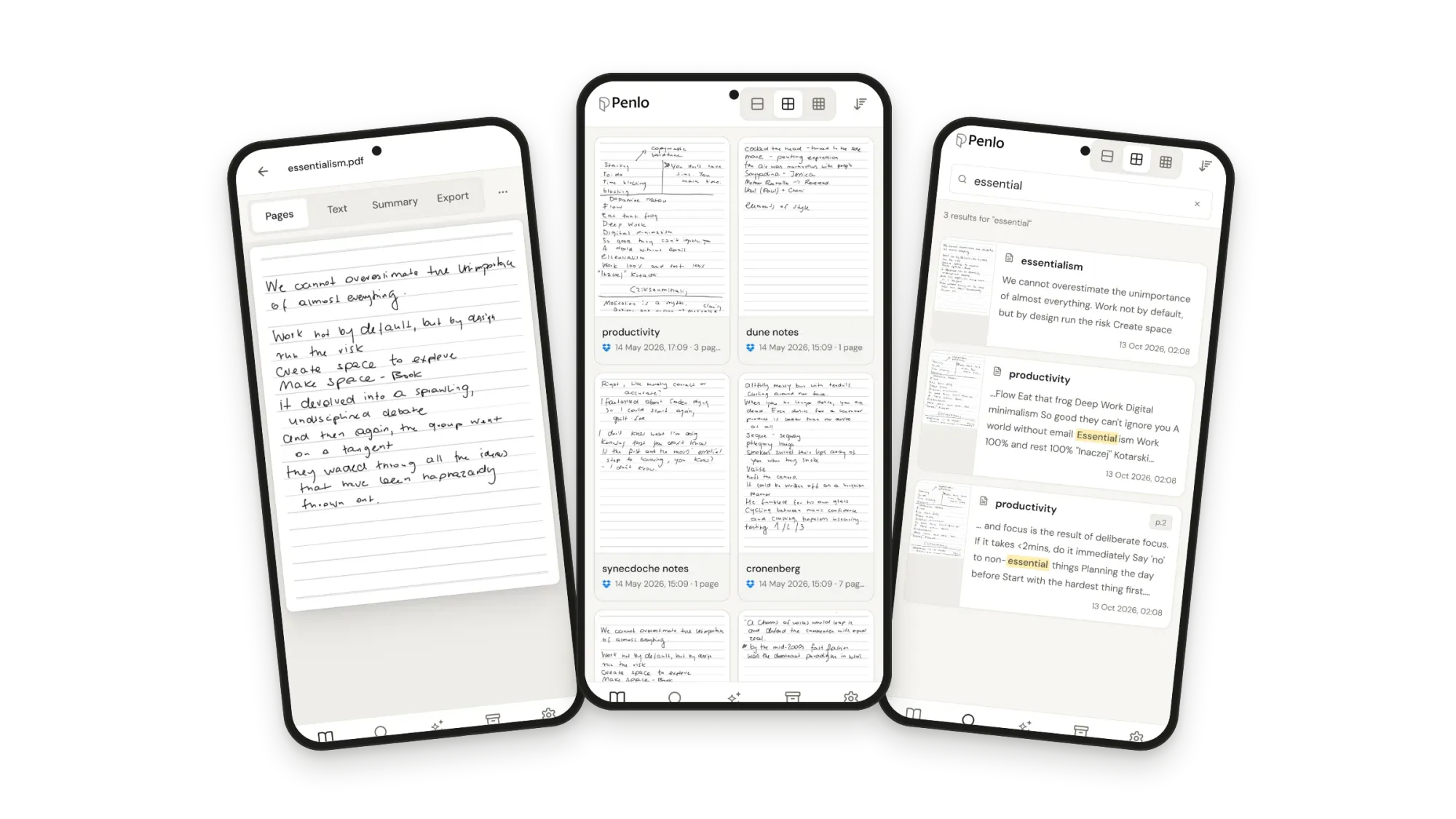
Install the same app on an Android phone and it opens your full Penlo library instead of the BOOX helper: every notebook, each page next to its text, search across everything, and Penlo AI.
Questions
Does Penlo upload everything on my tablet?
No. Penlo can only read the one folder you pick, and it only uploads PDFs from it. It never writes to the folder or deletes anything.
What if I'm offline?
New notebooks wait on the tablet. Penlo uploads them the next time the BOOX is online.
Can I still use Dropbox?
Yes. On Pro and Power you can sync from a tablet and cloud accounts at the same time. On the Free plan, pick one source.
How do I unlink a tablet?
On the tablet, tap Unlink on the status screen. Or in Penlo on the web, open Settings › Tablets and tap Unlink. Notebooks it already uploaded stay in your account.
Get it on Google Play (coming soon)
Penlo for Android is waiting for Google's review and will appear on Google Play shortly. Until then, create a free Penlo account and sync your BOOX through Dropbox or OneDrive today.
Written by
Builder, product marketer. Creator of Penlo and Ectobuilder. Co-author of The AdTech Book. Writes about turning handwritten notes into searchable, useful text.
Keep reading
How to set up Kindle Scribe with Penlo
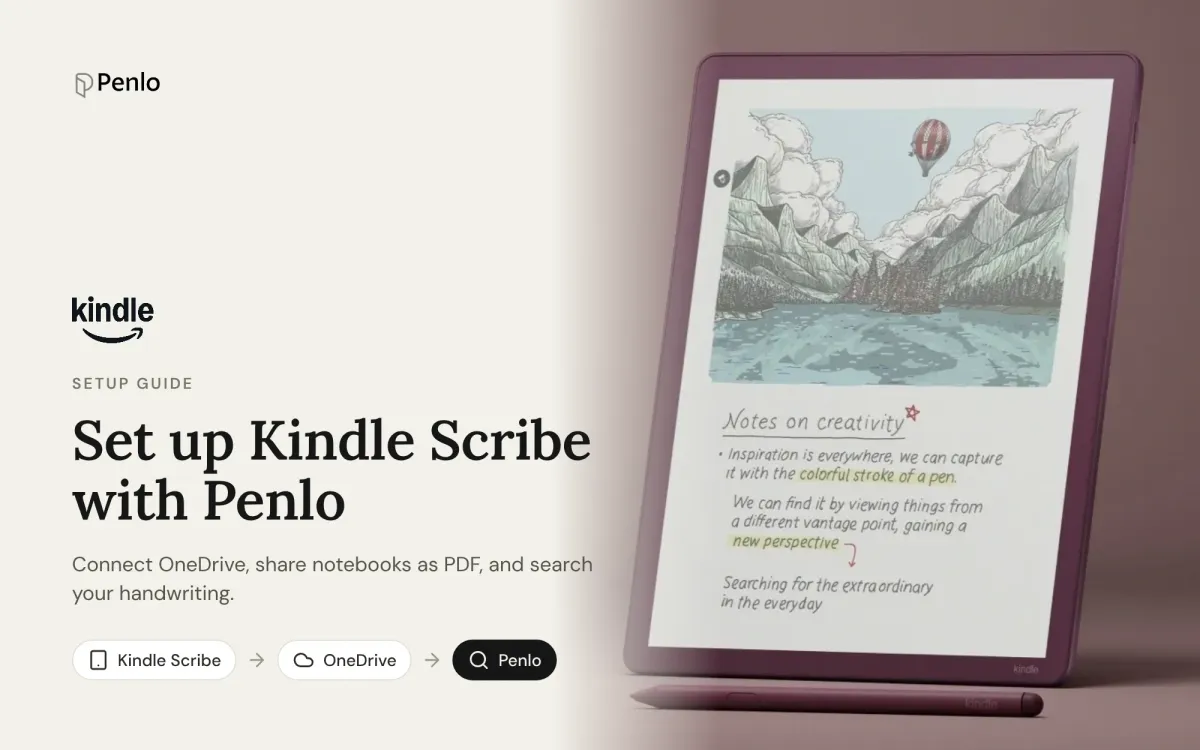
Connect OneDrive on your Kindle Scribe, upload notebooks as PDF, and Penlo turns your handwriting into text you can search from any browser.
How to set up reMarkable with Penlo
Add Dropbox or OneDrive as a reMarkable integration, export notebooks as PDF, and Penlo makes your handwriting searchable from any browser, no Connect subscription needed.
How to set up Supernote with Penlo
Link Dropbox or OneDrive on your Supernote, sync the EXPORT folder, export notebooks as PDF, and Penlo makes every page searchable from any browser.