
How to set up Kindle Scribe with Penlo
Connect OneDrive on your Kindle Scribe, upload notebooks as PDF, and Penlo turns your handwriting into text you can search from any browser.

Michal Wlosik
· 4 min read
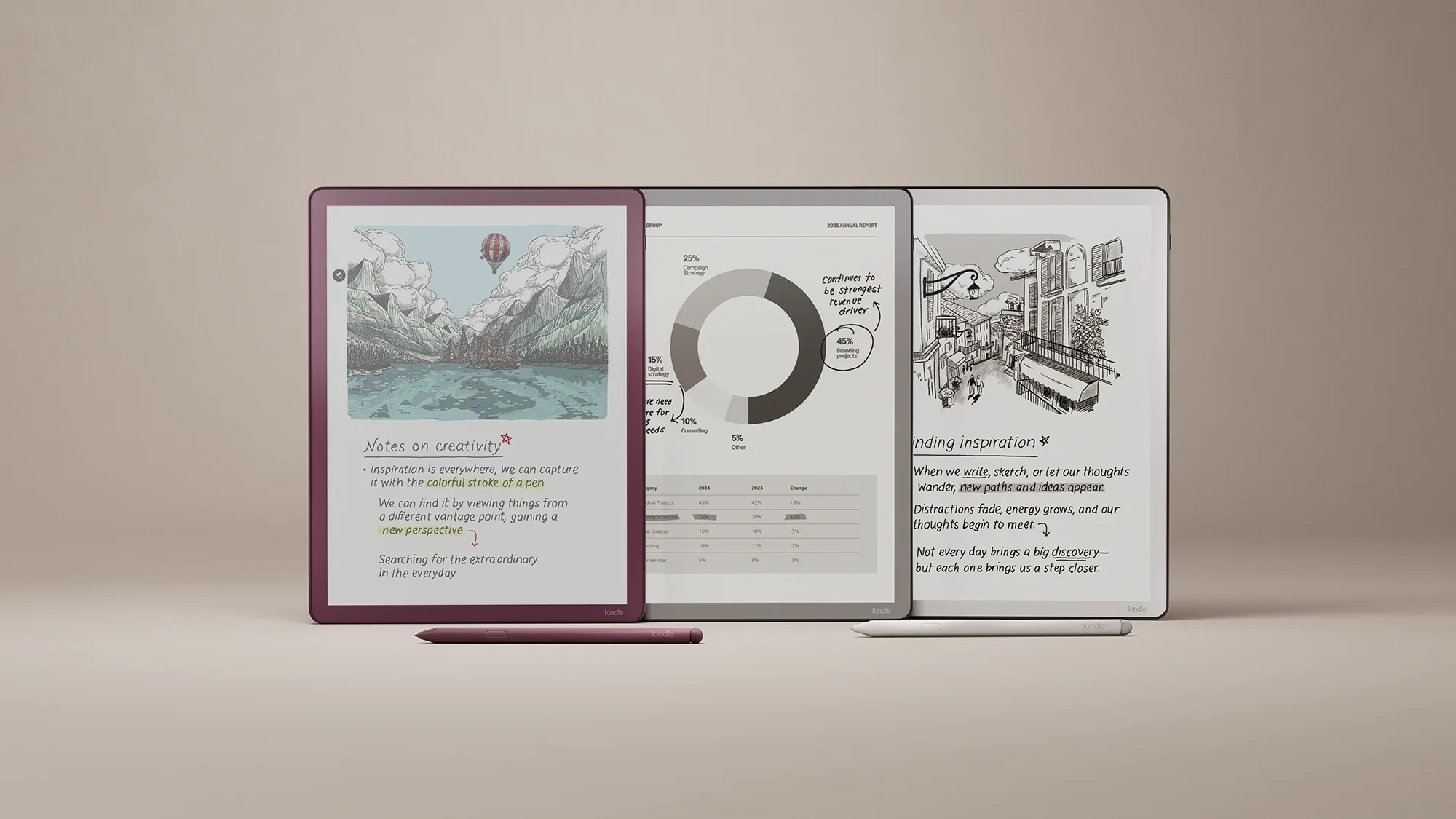
The Kindle Scribe is a great place to read and write, but your notebooks stay inside Amazon's world. This guide connects your Scribe to Penlo through OneDrive, so every notebook you share becomes text you can search from your laptop or phone.
What you need
- A Kindle Scribe released in 2025 or later, connected to Wi-Fi and registered to your Amazon account. Older models: see the note at the end.
- A Microsoft account with OneDrive. The free plan includes 5 GB. How it compares: Dropbox vs OneDrive for e-ink notes.
Step 1: Connect OneDrive on your Scribe
- Tap the connections icon in the main toolbar, then Add connections. You can also go to All Settings › Connections.
- Tap Connect next to Microsoft OneDrive.
- Scan the QR code with your phone, or open the Kindle Connections page on another device and enter the code shown on the Scribe. The code expires after 15 minutes.
- Sign in to your Microsoft account and finish the steps on screen.
Step 2: Upload a notebook as PDF
- Open the notebook and tap the top of the screen to show the toolbar.
- Tap the share icon, then Share entire notebook.
- Choose OneDrive and the PDF format, then tap Upload.
Find the PDF in OneDrive and note the folder it's in: that's the folder you'll give Penlo. Upload to the same place each time.
Step 3: Connect Penlo
- Sign up at notes.penlo.app. Every feature is free for 7 days, no card needed.
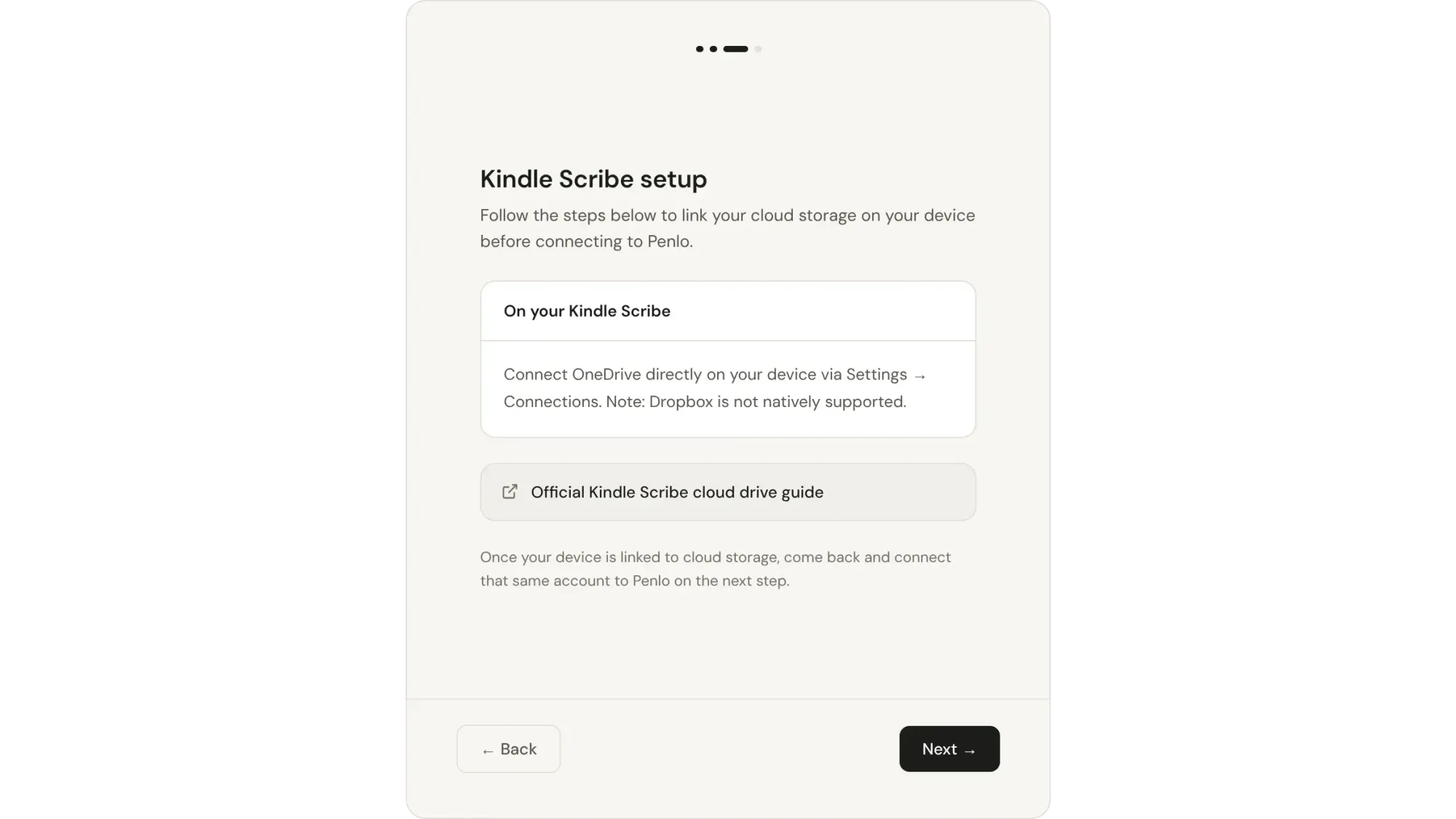
- Pick Kindle Scribe as your device, then OneDrive as your storage, and sign in to the same account your tablet uses.
- Choose the folder your Scribe uploads to.
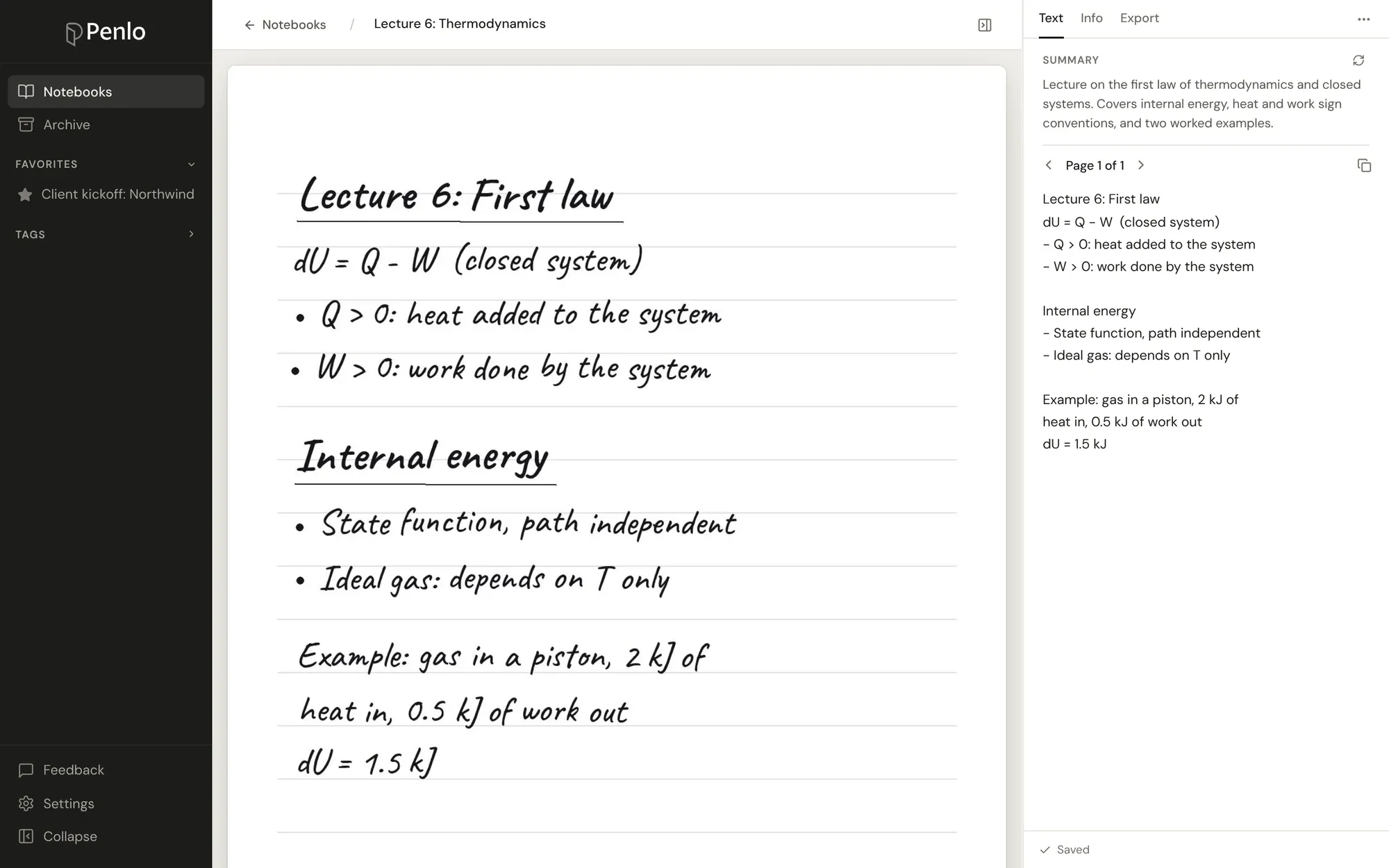
That's it. From now on, each PDF that arrives in that folder is picked up within moments: Penlo reads every page, cleans up the text, writes a short summary and makes it searchable alongside the rest of your notebooks. The full tour is in Getting started with Penlo.
Make your Kindle Scribe notebooks searchable.
Share a notebook to OneDrive and Penlo turns every page into text you can search from any browser. Try every feature free for 7 days.
Older Kindle Scribes (2022 and 2024 models)
Earlier Scribes can't upload to OneDrive, but they can email a notebook as a PDF. Open the notebook's share menu and send it to your email, then save the PDF into your Penlo folder in OneDrive or Dropbox. It's a manual step, but Penlo reads the file the same way.

Don't have Dropbox yet? Get 500 MB extra, free.
Sign up through our referral link and you get 500 MB on top of the free 2 GB plan. That's room for thousands of handwritten pages. (We get a little extra space too.)
Troubleshooting
I don't see Connections on my Scribe
Uploading to OneDrive is only on Kindle Scribe models released in 2025 or later. Check for a software update under All Settings, or use the email method for older models.
The PDF is in OneDrive but not in Penlo
Make sure the folder chosen in Penlo (Settings › Sources & sync) is the one the PDF is in, then press Sync now in Penlo.
Can I use Dropbox?
Not directly: the Scribe can't upload to Dropbox. Use OneDrive with Penlo, or save emailed PDFs into Dropbox yourself.
Menus change with software updates. If a step doesn't match your Scribe, see Amazon's Kindle Scribe help pages.
Other setup guides: Onyx BOOX · Supernote · reMarkable · All devices
Related guides
Written by
Builder, product marketer. Creator of Penlo and Ectobuilder. Co-author of The AdTech Book. Writes about turning handwritten notes into searchable, useful text.
Keep reading
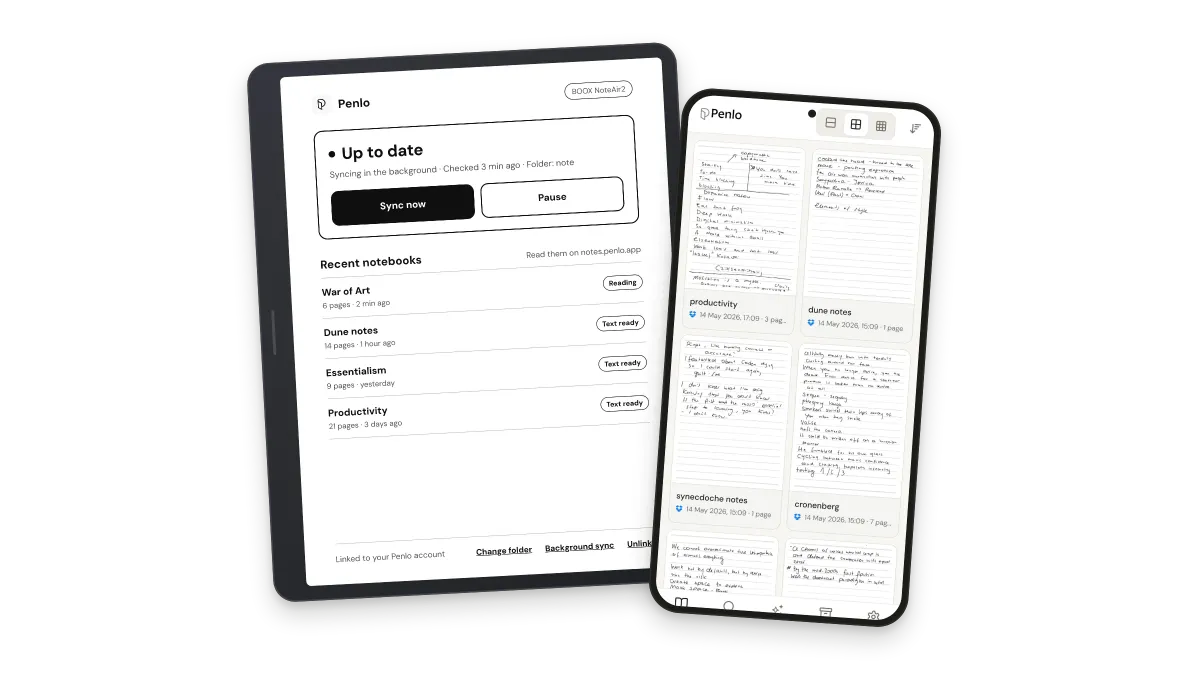
Sync your BOOX to Penlo without Dropbox or OneDrive
Penlo for Android runs on your BOOX itself. Pair it with a QR code, pick your notes folder, and every notebook you close uploads straight to Penlo. No cloud account to connect.
How to set up reMarkable with Penlo
Add Dropbox or OneDrive as a reMarkable integration, export notebooks as PDF, and Penlo makes your handwriting searchable from any browser, no Connect subscription needed.
How to set up Supernote with Penlo
Link Dropbox or OneDrive on your Supernote, sync the EXPORT folder, export notebooks as PDF, and Penlo makes every page searchable from any browser.